Seiten

Posts mit dem Label Google Calender werden angezeigt. Alle Posts anzeigen

24.06.14

Going (almost) paperless with free Google tools

I’ve been organizing a one week school trip to England with about 30 students and I am astonished  by the vast amount of not only paperwork but actual paper such a trip still requires in 2014, when all my students are equipped with computers and smartphones. Starting from catalogues of tour operators to endless lists for payments, passport numbers and host families the paper flow just doesn’t seem to stop. One thing that has particularly puzzled me is that I had to ask for a digital copy of anything I received from the tour operator, including boarding passes and addresses of our host families. In order to reduce the amount of paper I have tried to use electronic tools between me and my students when collecting data and sharing information as much as possible. These include:


Student information
I collected almost all of the information (phone numbers, email addresses, parent’s phone numbers, etc.) I needed via Google Forms (see here) and then exported the contact details to my Gmail contacts to have my students’ and their parents’ phone numbers available in case of an emergency.


Travel documents and information
I have shared some important travel documents and information via Gmail and Google Drive. In particular students should have their boarding passes and the addresses of their host families available on their phones. Other, less essential, information includes: travel guides, tube map, bus timetables in PDF format (these are also available as apps).


Programme
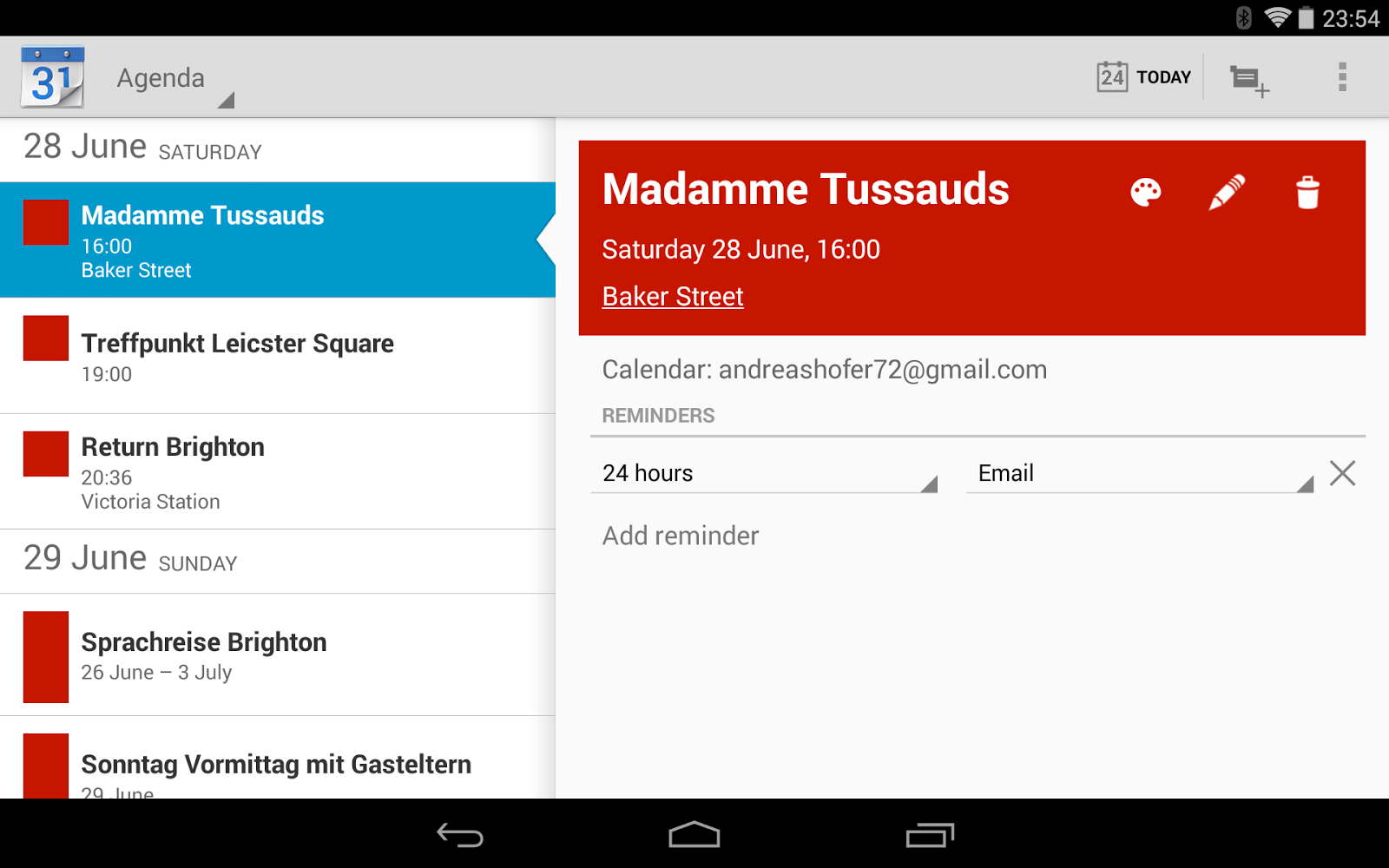
I created the programme in a Google Doc initially when it occurred to me that the best way of doing the programme is using a sheet. This allows you to quickly create a (shareable) Google Calendar, which is much more flexible than a conventional table: different views (most useful ones being the agenda view and the weekly calendar), it automatically creates links to Google Maps if you specify a place, students can import the calendar in their calendars and you can update events in real time.
i.png

Maps
Of course maps are always useful when travelling. For this particular trip I have created a map in Maps Engine for our day trip to London custom placemarks as well as a map of the host families homes. The latter can be easily created from a Google Sheet.


Checklists, vouchers, etc.
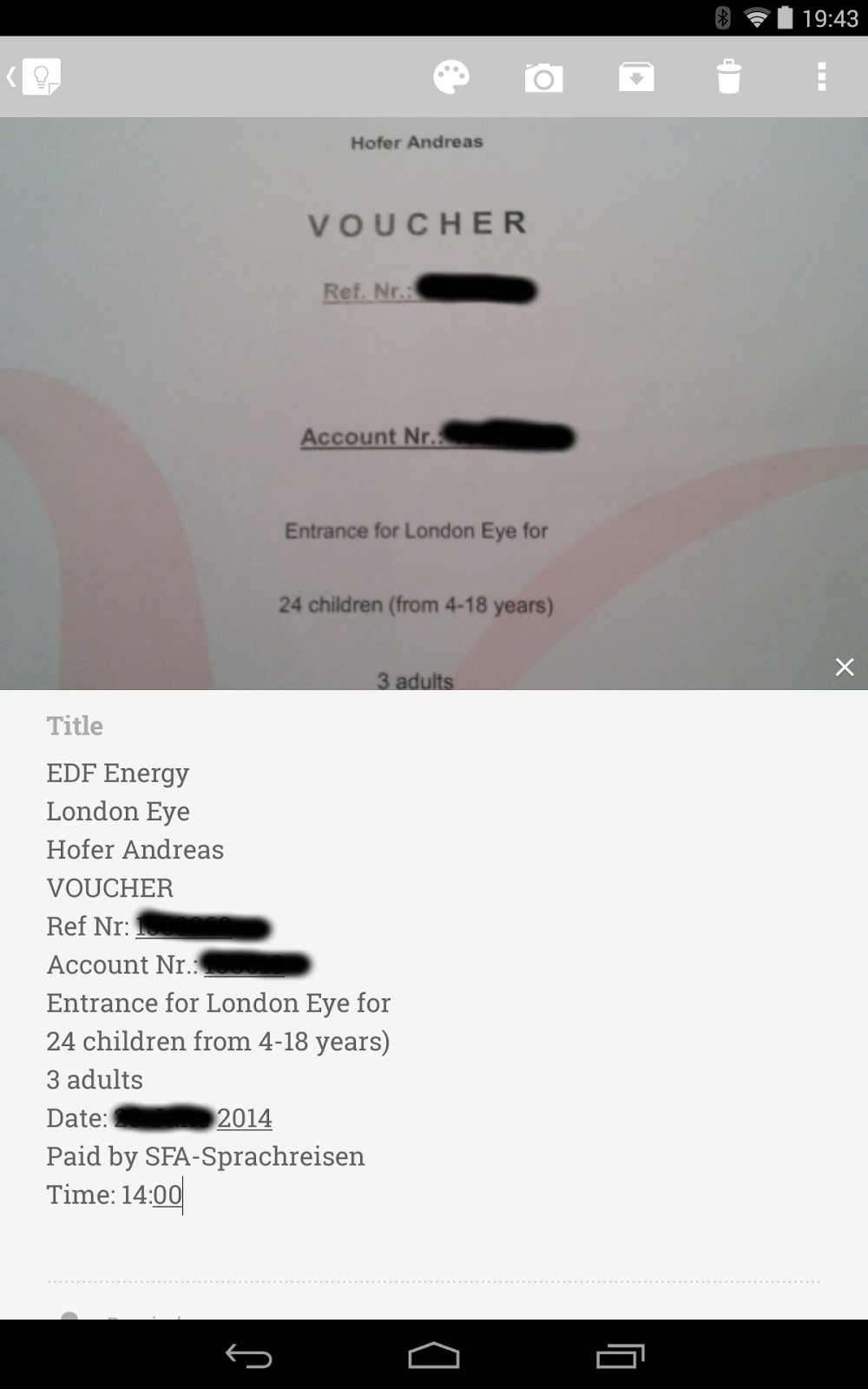
For some kinds of information Google Keep is more convenient than Google Drive. Google Keep is way faster than Drive and you don’t have to enable offline availability first as in Drive.  I created a quick copy of a number of documents with my phone and then sent the image to Keep and had the text transcribed (as in the example of the voucher below). Checklists are another thing that are easier to do in Keep than in Drive. I keep a checklist of all participants in a note, which I can copy spontaneously for whatever purpose might come up.
voucher.png

11.06.14

Organizing presentations, reports and other tasks with Google Sheets and Google Calendar

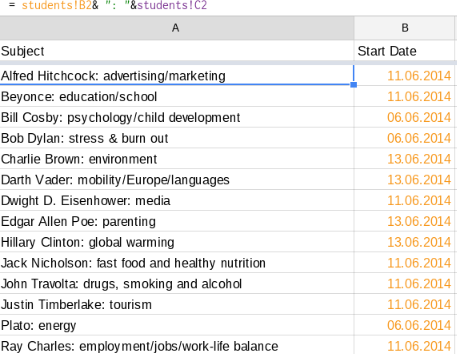
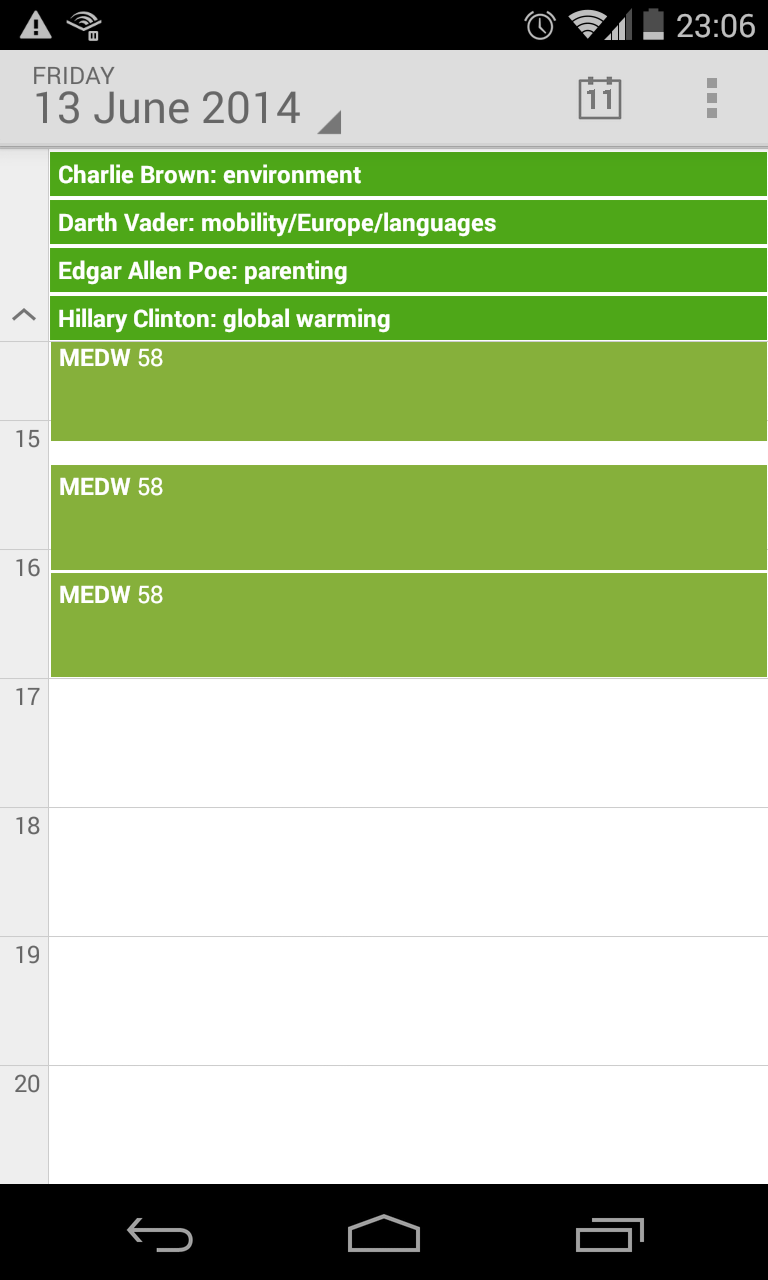
When I have student presentations in class I usually create a Google sheet in which students sign up for topics and a date. I like to have the date both in a spreadsheet (so that I can copy or import (using the importrange() function) the data into my gradebook and in my Google calendar so that I know who are the presenters for a given class without having to check a separate sheet. This can be done by using a CSV file for export/import.

2014-06-11_22-21-03.png

Of course it would also be possible to share a Google calendar with the students, however using a sheet has a couple of advantages. Cases where you might want to use sheets instead of Calendar are:

  • you already have a list of dates which you don’t want to enter manually into a calendar
  • you have a large set of data, which are easier to enter in a spreadsheet
  • anonymous collaboration (when not all of your students have a Google account)
  • when data validation comes in handy (e.g. only certain dates possible)
  • you already have a list of dates which you don’t want to enter manually into a calendar
  • when you have recurring tasks or events (e.g. students taking turns to do tasks like keeping the classroom clean)
Screenshot_2014-06-11-23-06-41.png

So, here is what I do to collect the dates:

  1. Create and share a sheet with the list of topics for my students to sign up for
  2. Use data validation to create a dropdown list with my students’ names
  3. Use data validation to limit the possible dates and avoid mistakes
  4. Create a sheet which matches the data to my class list
  5. Copy the data to an export sheet for Google Calendar

Sounds complicated? Most of these steps are actually optional and only meant to make the signup process more user-friendly to my students. All you need is one sheet with specific headings for Google  Calendar. In it’s most basic form these are “Subject” and “Start Date”. Of course you can also use “End Date”, “Location” and some others in case you need them.

As far as the calendar display is concerned, you can pack everything you want to show up in your calendar into the “Subject” column. You can do this by concatenating the relevant information, e.g. = student &”: “&”presentation topic. In my sample sheet I copy the information from a separate sheet: = students!B2& ": "&students!C2


To import the dates into your calendar (or class calendar which you share with your students) you have to save the sheet as a CSV file and import into Google Calendar (go to “other calendars, drop down menu > import calendar, then choose the CSV file and specify which calendar you would like to import the data to in case you have more than one calendar).


Note: This workflow is not very convenient if you keep updating the sheet. In that case a script automating the export/import process would be ideal. Unfortunately I cannot recommend any such script as all the scripts I have found so far didn’t work properly or had some kind of a flaw. I would be greatful if someone could point out a great script in the comments.

22.12.12

Google’s Christmas Marathon


Google has updated the majority of its services and mobile apps in the past couple of weeks - it almost seems Google wanted to make Christmas presents to all of its users. Even though not all services (like the music identification feature in Google Search) can be enjoyed everywhere in the world, there are plenty of new nice features for everyone. Here are my favourites:

Mobile apps:

  • Calendar app: finally Google has come up with a calendar app people really want to use
  • YouTube app: remote control addition for Google TV/PC
  • Google Drive: much improved editing of spreadsheets
  • Gmail app: swipe and pinch features adding more user friendliness
  • Currents: the magazine app is now a real competitor for the like of Flipboard
  • Google Earth: new 3d tours
  • Google Play Books: read aloud, dictionary, translation and notes (finally a competitor to the likes of the Kindle app and iBooks)
  • Google Now: lets you know how much exercise (walking, running, cycling) you have done (though this one probably still needs a lot of improvement it has a potential to decrease obesity)
  • Android camera: addition of photospheres (360 panoramic images); here is a Christmassy example
  • Google+ app: user interface improvement to an already excellent app; addition of communities and photospheres

The web and the cloud

  • YouTube: create slideshows from uploaded/imported (Picasa, Google+) photos
  • Chrome: Save to Drive from the web (images, texts)  addon for the Chrome Browser
  • Google Drive: improved Google Presentations/Slides (as it is called on my Chromebook) with a very handy presentation mode; integration of third party webapps
  • Gmail: attach files from Google Drive (up to 10GB - this one is a real killer feature)
  • Google+: communities: even though you can create communities with circles, this one comes more naturally

To heighten the Christmas spirit, Google has furthermore created its own Santa Tracker, both as a web app and as a mobile app:
http://www.google.com/santatracker/
Google Play Link

To mind Google has more than deserved the title of most innovative tech company awarded by The Economist (both in 2011 and in 2012).

I would like to finish my Christmas post with a “Happy Christmas to everyone!”


02.09.11

New Google Docs look and new features that are useful for students and teachers


Google Docs has a new look, which you can enable by clicking on the “try the new look” link above the menu bar (it is always possible to revert to the old look in the help menu). Google has adopted the new look across the board, i.e. with all major Google apps including:
  • Gmail
  • Google Calendar
  • Google Docs
  • Google Sites
  • Blogger
Apart from the new look, Google Docs also has some new features which are useful for students and teachers.  The two most useful for teachers and students are probably support for compressed file types (.zip and .rar), offline viewing of documents and new functions for the web clipboard.

16.08.11

Keeping track of homework and other tasks

Gmail and google calender have a task module which allows you to create lists for various tasks (homework, shopping, todo list, etc.). If you set a deadline for your task it shows up in your google calenender and you can set a reminder which is sent to your mail inbox or to your phone via sms or via status update. 


There are various apps that sync with google tasks. One of the most popular ones is GTasks (shown in the picture). Using such an app you can use your phone as a mobile notebook that syncs with google tasks.

Beliebte Posts