Seiten

Posts mit dem Label Google Drive; werden angezeigt. Alle Posts anzeigen

18.08.15

Creating quick tests with Google Form grid questions

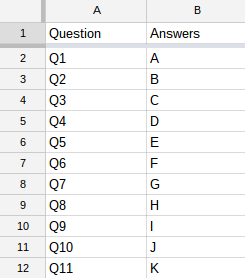
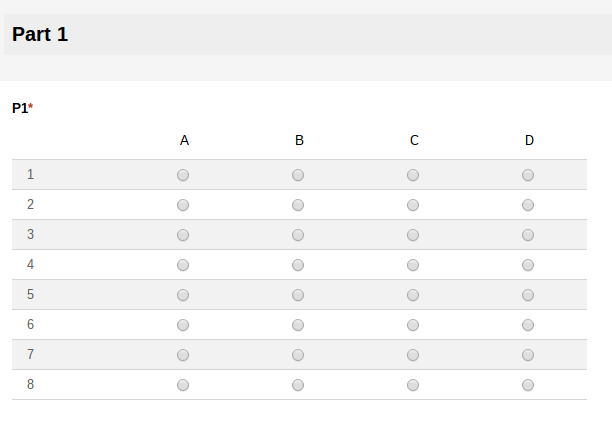
One of the most popular methods for creating online quizzes and tests for teacher is using Google Forms with the Flubaroo add-on. I use the same combination for tests which I already have in paper or pdf form. As typing out all questions would be a bit cumbersome and redundant, I actually just use paper/pdf with a Google Forms “answer sheet”, which then will look something like this:


Screenshot 2015-08-18 at 16.21.04.png

This works particularly well with standardized tests (like the Cambridge English certificates) which use mostly multiple choice, true/false questions. This is a huge time saver, as you don’t have to type the questions themselves and you can quickly create a lot of questions instantly. I do that by copying the number of questions and possible answers from a Google sheet. Say you need 12 questions with four options all you need to do is copy and paste them from the Google sheet.

Screenshot 2015-08-18 at 16.21.54.png

The students then are sent two links: one to the pdf file containing the test (which can also be printed out) and one to the Google Form to enter their answers. As this kind test is mobile friendly, the students could also use their smartphones to to that.

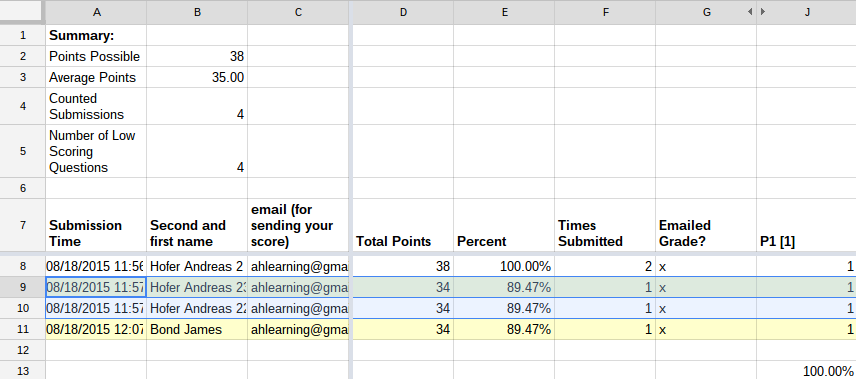
Using the Flubaroo add-on (there are plenty of tutorial for that) the answers are automatically graded based on a model answer by the teacher. The score and the correct answers can also be sent back to the students. This way an existing test can be quickly turned into an both student and teachers can get immediate feedback.

Screenshot 2015-08-18 at 16.49.09.png

03.06.14

How to create a student report with the new Google Sheets (includes template)

student report.gif


I have been keeping my gradebooks in Google spreadsheets for years now. It’s very convenient to access them from different devices such as my chromebook and my tablet. There are lots of advantages to keeping gradebooks in spreadsheets, the most obvious one being automatic calculation of grades, class average, etc. However, when it comes to looking  up information about a particular student having all the information in one row is rather inconvenient and cumbersome to show to students or parents.

The solution is to create a separate report sheet transposing the relevant information and possibly pulling in information from different sheets (e.g. different terms, additional note). The new Google Sheets has a variety of features that makes this an easy process. Here are the necessary steps

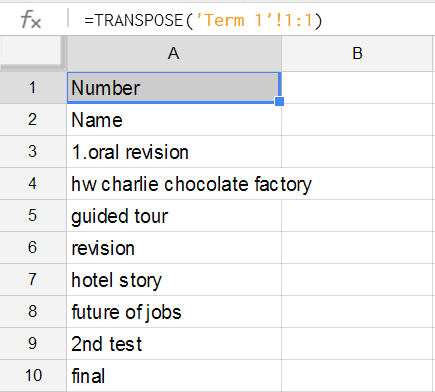
Create a new sheet in your gradebook and transpose the relevant information. You can do this either using copy transpose if you want to choose specific information or the transpose formula if you want to choose all information from the gradebook:
=TRANSPOSE('Term 1'!1:1)
03-06-2014 10-08-55.png


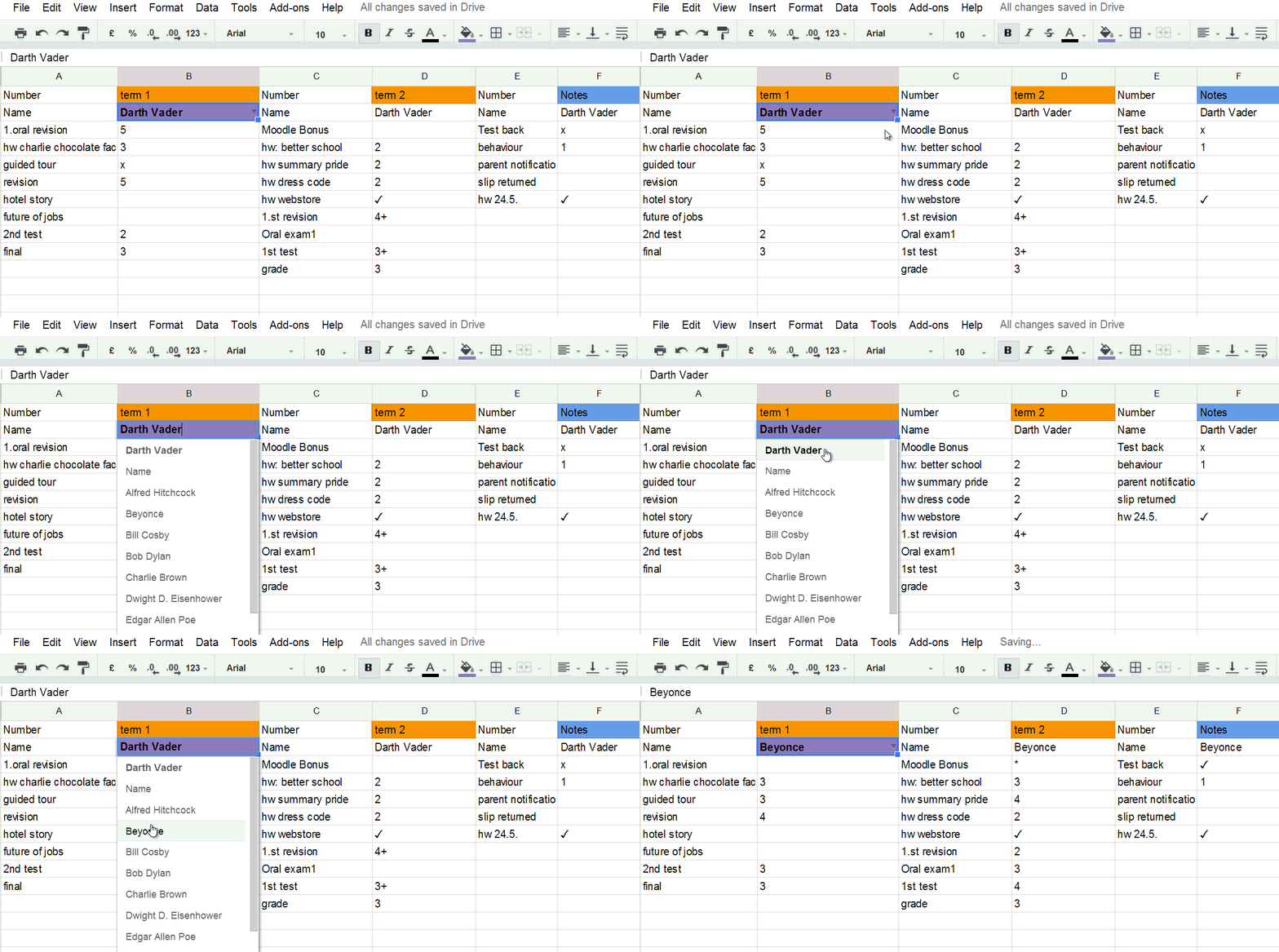
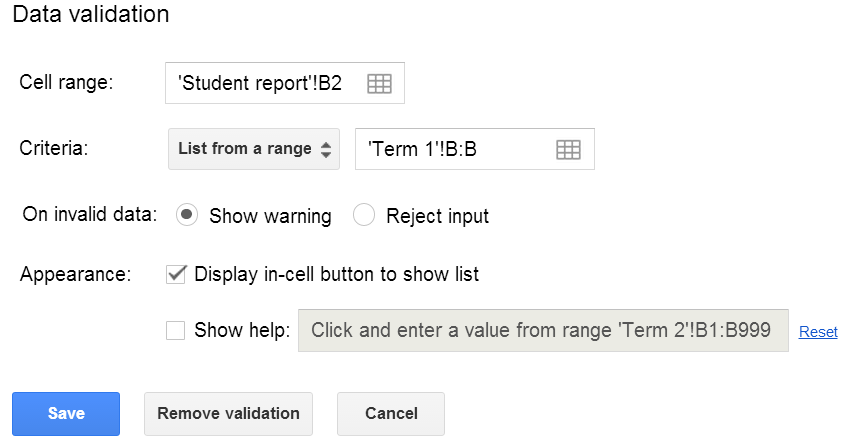
In the B column next to the name field use data validation (menu data/validation) to allow only the students’ names and to create a dropdown list.
03-06-2014 10-09-50.png

The final step is to look up the matching information from other sheets. This can be best achieved with the index and match functions:

=INDEX( 'Term 1'!$A$2:$Z$34,MATCH($B$2,'Term 1'!$B$2:$B$34,0),ROW())
03-06-2014 10-10-31.png

Finally you can pull in information from other sheets simply by repeating the process for other sheets in the file.  

In case that feels a bit overwhelming you can simply use my template

Here is the link to the template. If you want to use it just create a copy in your own Google Drive. Of course you can change the variables and sheet names without losing functionality.

31.03.14

Less than five double clicks away - how Google Drive is beating the desktop

I receive a flight confirmation that I want to print out. What do I do? Old habits die hard - I download the pdf file, open Explorer,  click on the download folder, get a message that there are no files in the folder, wait, get dozens of files, have to wait some more, right-click to have most recent files show up at the top, wait some more, double click, wait some more for the bulky Adobe reader to open up, get an error message, click it away, print the file out.


Nothing unusual about this experience, except that it sucks. It sucks like PHP web applications sucked for the average desktop user ten years ago. What took five double clicks on the desktop then, took at least ten on the Web. However, things have changed, and dramatically so. I regret my decision to use the desktop for printing out that document. I should have saved it to my Drive (one click), opened Drive (another click, at least if you use the Chrome browser), click on the “most recent” link and print it out. Five clicks and less than half the time.


And this is far from being a singular occurrence…. examples actually abound. I almost always regret if I open up MS Word or Powerpoint accidentally (i.e. when I don’t really need them) instead of my Drive apps, and I definitely pity myself when looking for a file in my 5 external hard drives, 15 USB thumb drives and 150 CD-ROMS and DVDs for not having copied it into my Google Drive folder.


When it comes to search no hard drive, as big as it may be, can beat Google Drive. You get search results instantly, even among thousands of files (I can easily have a snack when I do the same thing on my 500GB hard drive. What’s more, I get search results from within documents, pdf files and even images (OCR).


Of course, for Drive users, that is no big news, neither are its superior collaboration features. However, you can even get more out of Drive if you stop thinking in terms of desktop applications and start using if for what it is - a web application. And as such, all your information is only a click away, if only you save the URL  where you need it (could be bookmark in your browser, inside a document, a presentation or a sheet, as a link on your tablet or even on your desktop if you wish so). 

Think of your Drive as your personal web. I have started to use a few central documents which link to folder, files, website, videos, etc. for my work. Not only can you link to specific files, but also to specific information within those files, say, a certain page (bookmark) in a document, a specific slide inside a presentation or a specific time in a video (on YouTube) or a page in a book (if you use Play Books).


Example: playing audio files in my classes - using the desktop I would have to insert the CD, wait for the disk drive to be ready, start a player, choose the file. Inside my drive I just link to the audio file from my lesson plan page or from a presentation - a single click instead of a couple of double clicks.


You can even link to applications. Like a timer (if you want to change the time, which I have set to 15 minutes, just click inside the time and change it). One last example to hammer home my point: when I first installed Windows 8 it took me easily more than a minute to find the calculator when I needed it for the first time. Ever since then I haven’t bothered looking for it. Not that I haven’t found it, I’m just faster typing “calc” into my browser. Try it, or try clicking calc :) (Chrome browser only)

30.03.14

Tips for easier (anonymous) collaboration in Google Drive


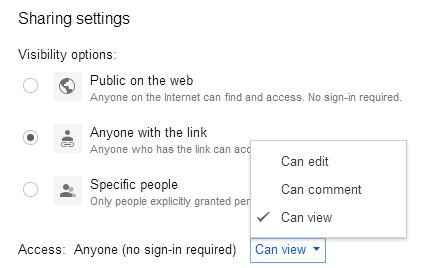
For many teachers using Google Drive in class is made more difficult by the fact that not all students use or want to use Google Drive. Most of my students have a Google account, but very few really use Google Drive and some are reluctant to use their accounts because of privacy concerns. Luckily anonymous sharing and collaboration is almost as good in most situations. I simply share a document using the option “anyone with the link” and then choose “can view/edit/comment” according to my requirements. 2014-03-30_09-29-03.png


One problem that might arise due to anonymous collaboration is, that the document gets a bit messy. The solution: simply use class lists to organize anonymous documents.

Sheets: I keep lists and gradebooks of my classes on Google <Sheets. Whenever I need a collaborative sheet (e.g. signing up for presentations) I simply create a new sheet, paste the names and share the document with the students.

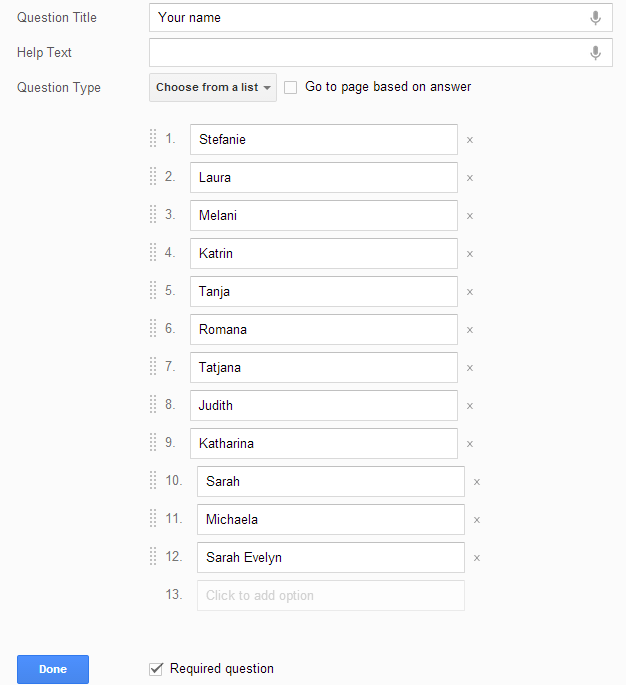
Forms: Forms are always anonymous, but you can create a name field and make it a required question. To make things easier for the students select “choose from list” and paste your students names from your Sheets list. Forms is very user friendly here. 
2014-03-30_09-23-47.png

Slides: There is not really a quick way of doing the same thing for Slides. The teacher can pre-populate the presentation with slides bearing the students’ names and then save the presentation as template. Alternatively the students simply do that themselves (i.e. create slides with their names, possibly in alphabetical order). Collaborative slides are a huge time-saver in class as merely changing USB flash drives (let alone starting up Powerpoint) takes a lot of time. So, whenever I have only short presentation (typically up to a minute) I ask the students to create one or several slides in a single collaborative document.

Docs: The trick in Docs is a little bit less obvious. Again paste the list of names from Google Sheets or Excel. This time, however use the key shortcut ctrl-shift-v so that you only get the text and not a table. Then format the names using one of the heading styles (e.g. heading 2) and create a table of content. All the students need to do now is click on their names and start writing.

You can use this method whenever:
  • you work with younger students who have no accounts
  • you only have a short text  and you don’t want to open up 15+ documents
  • you want the students to work on one document only
  • you want the students to see the work done by their classmates (e.g. it might be interesting to compare different endings to a story.
  • you want to publish the document to your blog/website and save yourself the time to copy from 15+ documents.

Using the students’ names in alphabetical order also makes it easy to spot the students who haven’t “handed in” their work yet.

Here is an example:


25.03.14

Google Drive - Tips and tricks for you teacher’s toolbox


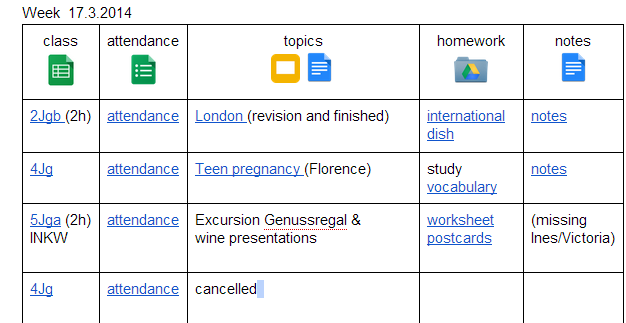
2014-03-25_21-16-54.png


Google Drive is most frequently associated with collaboration in the classroom. However, it provides also valuable tools to plan, organize and execute your lessons and materials.


There is certainly no lack of commercial teacher tools, in particular  for the iPad and some of them are very pricey. However, you can do more without additional costs with Google Drive. What’s more, you can also work more conveniently, as you can work across devices, such a laptops, smartphones and tablets and you aren’t restricted to using a single device.


You can create your own teacher’s toolbox application just by linking to different documents and materials in your Google Drive or by importing and cross-referencing. Here are some ideas which might be useful for your personal toolbox:


Set up a lesson planner (like in the image above) where you link to the files which you don’t want to have available quickly without having to look for them. These might include:
  • a gradebook
  • a students’ sheet/notebook
  • presentations
  • forms for attendance and/or grading
  • folder for homework/portfolios/shared materials


Linking allows you to efficiently keep all your information in one place. Here are some thing you can do with Google Drive might not have thought about:


Docs: insert a bookmarks or create a table of content and you can quickly link to a specific part of a longer document (e.g. a document where you keep track of your student’s behaviour).


Sheets: create a summary sheet for your students by copying from other sheets within the same document. You can also import “live data” from other sheets with the importRange() function. E.g. I create a sheet where the students can register (anyone with link can edit) for their presentations and then I import them to your summary sheet or gradebook.


Forms: you can chose a specific sheet (e.g. gradebook, attendance list) for your forms. You might want to create forms for yourself to enter data quickly, particularly if you make heavy use of a tablet.


Slides: I like to keep my detailed lesson plans inside presentation slides. It would, however, be a bit inconvenient to create a presentation for each class rather than have one topic inside a presentation. So, if you continue the topic in your next class you can simply copy the URL of the respective Slide into your lesson planner.


Folders: You can create and link to folder containing all kinds of files and information. I like to keep my audio CDs in folders in Google Drive, so that I can play audio files directly from my presentations. Other kinds of folder you could link to: homework folder, portfolios and shared class folders.


The following video is meant to provide some tips and trick for (creating) your own toolbox.


16.03.14

Using Google Drive as a document camera and to annotate worksheets

Document cameras can be very effective in a classroom. However good ones usually are also quite pricey. For many purposes it is actually enough to snap a picture of the document (printed material or student work) and visualize it from your Google Drive. The Google Drive app has as scanner which uploads in PDF format. Inside the browser you can open the file with the PDF viewer. The built-in PDF viewer is extremely fast, but is compromises on quality and functionality.

One way to mark up documents it to install the PDFzen viewer and editor, which provides basic tools to comfortably view and annotate (text, highlight and draw) the document. As this is still a beta version it doesn't always work as expected. In particular it is a bit slow to load and saving back to Google Drive doesn't always have the desired result. However, there are also other ways to save and share the annotated document and if you just want to use it to visualize material you might not be too interested in the save function anyway.

This video shows you the workflow.

04.03.14

Getting googley with images

Google image search, though far from being perfect, has become really impressive. Your images are OCR scanned in your Drive and far beyond simple letter recognition you can search for images that aren't even tagged on the Web or on Google+.

The following video round-trips you from Google image search via Drive to G+ photos and back to image search and on the way you might discover some educational implications for yourself and/or your students.


26.02.14

Using Google Drive with a textbook in the classroom

Google Drive does not have to be an alternative to the textbook, but can be used easily in conjunction with it. In this short video tutorial I show how I am using Google Drive with a projector with the textbook during a class.

The tutorial includes the following points:
  • using simple and quick animation for revision questions (and answers)
  • taking a snapshot of a page of the textbook with your phone or tablet and projecting it in the classroom
  • reusing an exercise from the textbook
  • uploading and linking audio files that come with the textbook to your Drive
  • projecting the solution to an exercise (from the teacher's book) for your students
  • enriching a lesson with multimedia resources from the web
The tutorial includes some time savers (such as linking audio files and quickly inserting pictures from a smartphone into a presentation) as well as some Google Drive insider tips (how to get a direct link for a file on your drive, avoiding the standard viewer).


16.02.14

How to automatically send homework and other files from your Gmail inbox to Google Drive

When it comes to homework there are a couple of ways for your students to hand them in using Google tools. The most convenient way is probably when the school uses Google Apps and the students simply share their own folders, or a teacher sets up folders for their students with the gclassfolders script.


However, more often it is the case that not all students in your class use Gmail and Google Drive. In that case you could a web form like Dropzone where the students can upload their files to your Google Drive without signing in or even having to have a Google account.


The most common way of handing in homework is, however, via email. There are a number of drawbacks when it comes to managing homework in your email inbox. It would be much more convenient to have the files in your Drive and, of course, on your PCs hard drive if you use the desktop version of Google Drive. Google doesn’t provide the possibility to save files via Gmail, however there is a great third party script which fulfills this functionality.


Here is how to set it up.


1. Create a homework label in Gmail
If you collect homework via Gmail, you might already be working with labels anyway. If not, here is what you have to do. Create a label (there is a link under Inbox and all your other labels), say. “homework”. Then create a filter with “contains the word “homework”” (I also have a second one with “HW”) and choose apply label “homework”.


2. Set up and run the script
The scrip “Send to Google Drive” is a Google spreadsheet script which is really easy to set up. You create a copy of the script in your own Drive and change the settings according to your own wishes (Gmail label and Google Drive folder in which you want to save the attached files). Finally you have to authorize and run the script (see screencast at the bottom of the post). Here are the author’s instructions:


Apart from collecting homework you can also use the script for mobile uploads from your students (e.g. photos, podcasts or short videos). The script runs every five mintues, so you might have wait a while before you see uploads in your Drive.


If you do audio podcasts with students who use iPhones, it is the only way of collecting the files in your Drive directly. iOS doesn’t allow direct access to your files other than photos and videos. So, the students can’t upload them neither to their own Drives nor via a web form.

The script has another advantage: it also saves homework from all past emails and thus creates an archive of past email. I move the old files into a separate folder (homework archive). Of course, you can also delete them, if you don’t want to keep a copy of your students’ homework.


05.02.14

Creating your video library in the cloud

Most teachers are probably not used to teaching with videos on a regular basis yet, and even fewer will feel the need for a video library in the cloud. Yet, as broadband connections have become more and more reliable it is getting easier to use video in the classroom via the cloud and more and more teachers are starting to use video for flipped classrooms.

Google certainly does't make it easy to decide where to keep your media. For photos there is Picasa, G+ and Drive and for video there is YouTube, G+ and Drive. I'm actually using all three of the services for different purposes. While I usually have my private video on Google+, I prefer to upload school projects that are meant for the public to my school's YouTube channel or I create a separate YouTube channel for bigger projects.

So, what is the point in using yet another service? As I have started to build my media libraries in Google Drive, i.e. photos, images, audio files which I use in my classes, I have also started to use Drive more and more often for short educational (usually 3-10 minute) videos. There are a couple of reasons for choosing Drive over YouTube or other services. The most important ones are probably that

  • Drive is private rather than public by default.
  • you can easily download videos from Drive to your PC or mobile device
  • you can stream video without having to download from the web
This makes drive quite useful in the following situations: 

  • You have a project involving video podcasts and your students don't want to upload their videos to YouTube. The students can upload the videos to a shared folder or via a form (e.g. Forms+) 
  • Videos are part of the students portfolio. In this case Drive is a much better option than e.g. Moodle as there are no strict size limits and you can stream videos directly in Google Drive rather than having to download them. 
  • You want to use online video and you are not sure if that video will remain online in the future. Upload it to your Drive and stream it from Drive rather than a public service. 
  • You use copyrighted material (e.g. videos that come on a CD/DVD with a textbook) which you are not allowed to publish online. 
  • You would like your students to be able to download the videos you share with them.
  • You would like to keep a copy of a video on a mobile device for reference on the go
  • The video is part of a set of learning materials (e.g. pdf files, vocabulary lists, etc.) and you want to keep it in the same place (e.g. a Drive folder) as the other materials. 
Google Drive also offers a couple of other useful features:
  • Third party apps (e.g. a video converter, trimmer, etc.) 
  • Comments
  • Publish on blogs or Moodle (via embed code)
Of course, there is still plenty of improvement in Google Drive regarding the use of video: 
  • Chromecast functionality in the Drive app (like in the YouTube app)
  • a YouTube like editor
  • note taking/comments based on the the timecode
  • subtitle/transcription feature (including search!) 
As far as Chromecast is concerened there are currently two ways of playing a Drive video via Chromecast on a big screen: 
  • using the Chrome browser Chromecast extension on a laptop/chromebook
  • playing the video file via a third party Chromecast enabled player (e.g. Avia, AllCast)
It would be nice, however, to be able to do that directly frome the mobile Drive app. 

People have barley begun building their video libraries in the cloud, so many of these features might come as people start to use them. At least for teaching with video Google Drive seems to be a great choice. When it comes to learning, YouTube playlists might be sufficient for the time being. However, as teachers are starting to make more use of video (e.g. flipped classroom) video libraries in the cloud will also become more interesting for learners.

One final piece of advice: when starting to build your video library you want to keep the size of your videos rather small in order not to fill up your drive space too fast. Using the mp4 format ensures a good compromise between quality and file size. Moreover, PAL/NTSC format might also be sufficient for the time being. 


19.05.13

Google I/O, stats and education


As Google I/O 2013 was going on this week, Google stocks hit an all time high of over $900 (and simultaneously the G-Learning blog has reached 50.000+ pageviews). And while this year's Google I/O might have been a disappointment for gadget lovers (no new Nexus smartphones or tablets were presented as had been expected) there are some quite positive implications for education:

900 million activated android devices,  Google+ and YouTube in second and third place (after Facebook) in social media, Chromebook nr. 1 selling laptop on amazon.com for more than 20 consecutive weeks, integration and unification of Google services and some education specials have made this week an exciting one for all fans of Google in education.

Android has not only overtaken iOS in the smartphone market but also in the tablet market. That means BYOD settings now would most probably constitute a majority of Android devices. Moreover, Google has done a lot to contain Android's fragmentation problem. If a school should start a new tablet class next school year, they would most probably start with Jelly Bean devices. What's more, with Google Play for Education it will be easier for educators to find educational apps (curated and recommended by other educators) and push apps and eBooks to their students's devices.

One of the many announcements I am particularly excited about is that Google Play Books now allows you to upload your own PDF and epub files to the cloud which then will be synced between different devices. So far neither Apple nor Amazon provide a similar service. Play books, which is integrated with Google Search and Google Translate is already now one of the best e-readers available. Further integration with Google Keep or Google Drive for taking notes would make it a perfect tool for students.

Google is doing some serious catching up with Apple in the education sector. With iBooks (Author), Airplay, iTunesU Apple has some great tools for education, which are restricted to iPads only, however. Google has a cross-platform approach which is intrinsically appealing to anyone with cheaper devices in mind and ultimately the only way forward for BYOD settings.

Apart from Android Google's web services also will have an even greater impact on education than they have had so far. Currently Google is revolutionizing "search" for the second time in history. With the development of Google Now, image and voice recognition and location based search (Maps, Field Trip) Google is leading the way to Web 3.0. While many other companies are actively trying to circumnavigate the web and succeed being mobile only, Google is pushing forward web standards like the open WebM video format and web-based video chat (Hangouts).

Google+, which so far has had little impact in education, might also become a serious competitor for social media like Facebook and Twitter, or in combination with Google Drive in some instances even for LMSs. YouTube, which currently process 100 hours of uploaded videos per minute is bound to become increasingly important both for traditional and flipped classrooms.

Considering Google's current focus on software integration it is not hard to envisage a near future in which these services work seamlessly together across different devices and platforms providing both tools for personal learning networks as well as as learning management systems and even MOOCs.

03.02.13

Google Forms updated

Google has finally updated one of its most popular services among educators: Google Forms. Now it has all the collaborative features of other Google Drive applications like Docs and Slides, plus some new features specific to Google Forms that make it more user friendly. Among the new features are:
  • multi-user collaboration
  • commenting 
  • themes (the traditional one was really getting a bit boring, but it's still available for fans)
  • more options for questions
  • multiple pages
  • easier editing and automatic saving
  • graphic result analytics
Google forms can be used for polls, surveys and quizzes and even review exams.
And here is what it looks like (you are welcome to take the online OS survey, of course):


22.12.12

Google’s Christmas Marathon


Google has updated the majority of its services and mobile apps in the past couple of weeks - it almost seems Google wanted to make Christmas presents to all of its users. Even though not all services (like the music identification feature in Google Search) can be enjoyed everywhere in the world, there are plenty of new nice features for everyone. Here are my favourites:

Mobile apps:

  • Calendar app: finally Google has come up with a calendar app people really want to use
  • YouTube app: remote control addition for Google TV/PC
  • Google Drive: much improved editing of spreadsheets
  • Gmail app: swipe and pinch features adding more user friendliness
  • Currents: the magazine app is now a real competitor for the like of Flipboard
  • Google Earth: new 3d tours
  • Google Play Books: read aloud, dictionary, translation and notes (finally a competitor to the likes of the Kindle app and iBooks)
  • Google Now: lets you know how much exercise (walking, running, cycling) you have done (though this one probably still needs a lot of improvement it has a potential to decrease obesity)
  • Android camera: addition of photospheres (360 panoramic images); here is a Christmassy example
  • Google+ app: user interface improvement to an already excellent app; addition of communities and photospheres

The web and the cloud

  • YouTube: create slideshows from uploaded/imported (Picasa, Google+) photos
  • Chrome: Save to Drive from the web (images, texts)  addon for the Chrome Browser
  • Google Drive: improved Google Presentations/Slides (as it is called on my Chromebook) with a very handy presentation mode; integration of third party webapps
  • Gmail: attach files from Google Drive (up to 10GB - this one is a real killer feature)
  • Google+: communities: even though you can create communities with circles, this one comes more naturally

To heighten the Christmas spirit, Google has furthermore created its own Santa Tracker, both as a web app and as a mobile app:
http://www.google.com/santatracker/
Google Play Link

To mind Google has more than deserved the title of most innovative tech company awarded by The Economist (both in 2011 and in 2012).

I would like to finish my Christmas post with a “Happy Christmas to everyone!”


01.12.12

The new Samsung Chromebook - a great device for school and education

For the last week I have been using a new Samsung Chromebook in school (not with students, just for myself as a teacher) and it has been mostly - with the exclusion of some hiccups - a great experience. It combines the lightness, simplicity and speed of a tablet with the versatility of a laptop. Of course, not without making some compromises. So, here is what the Chromebook is not
  • a substitute for full blown PC and therefore not likely to be your sole device 
  • a status symbol as it does feel a bit cheap (or rather corresponds to the price tag of $249)
  • a device you would want to have unless you feel at home in the cloud and you have got wi-fi access at home and at school

Having said that this little netbook with a great keyboard and an even greater trackpad has surprised me with how many task I like it using for.  As it is instantly on it is particularly useful when you have tasks to do that don't typically take longer that booting a slow PC and logging into the school's network, including sending an email, taking a couple of notes, getting organized and doing research work online.

If you are familiar with the Google apps and Google Chrome you can start to work straight away. Here is what I've been using the Chromebook for:

  • staying organized with calender, tasks and email
  • writing my preparations in Docs
  • creating presentations for my classes in Slides (quite a hassle free experience)
  • using drive to access files (from pdfs to mp3 for listening comprehension)
  • research (Google Search, Google Translate, Wikipedia, etc.) 
  • entering students' grades and assignments into a Google spreadsheet
  • blogging (in fact I'm writing this review on the Chromebook)

This list basically covers all my needs as a teacher. Students, of course, could additionally choose from hundreds of educational apps on the web, such as voki, sliderocket, prezi and many more.

The  Chromebook is very light and you can carry it around just like a tablet, without cables and connectors. The battery lasts for 6 hours, which should get you easily over one school day.

The only problems I have had so far were occasionally slow connections, connection timeouts (disconnecting and reconnecting resolved the problem) and inserting an image into blogger directly from the webcam. My verdict: 4 1/2 stars out of 5.


26.04.12

Google Drive = Dropbox + Evernote

So, Google Drive has arrived. With so many cloud storage services around most people might not care and simply stick with their favourite service. I have been using Dropbox (mostly for private purposes) and box.net (mostly for school, due to its anonymous upload capabilities) as well as Google Docs for private purposes and school and I find the arrival of Drive rather more exciting than probably the majority of people. If you are already a Google (Gmail, Docs, etc.) user, Drive does provide an advantage over other cloud services due to its integration with Gmail, Docs, Android and Google+.

Drive actually replaces Docs and adds a couple of new functions, the most important of which is a desktop client which is very similar to Dropbox.  Storage capacity aside (most users probably don’t need more than 2GB at present), Drive has the big advantage that it also provides previewing (some 30 document, archive, image and video formats) and editing (Docs). Links to shared files and folders are opened in the mobile App, which allows you to edit files and make them available for offline use. These features actually allow you to replace Dropbox + Evernote  (storage + note taking) with Google Drive.

Drive will definitely be my preferred service for collaboration in school, as I am already using Docs and most students already have a Google account (users of Gmail, Android, YouTube).  That makes it easier to use in collaborative projects than Dropbox.  Drive also allows anonymous collaboration (you have to be logged in, though), which further facilitates quick collaboration and has a great potential for mobile learning (quick and easy upload of notes, photos, podcasts, etc. from mobile phones).

I also use two Chrome plug-ins for Drive which allow me to instantly save attachments from emails and photos and downloads (cloudsave) from the web to Drive, respectively. 

Here is a list of thing you can do with Drive:
  • Access all files from the desktop and mobile devices
  • Share files and folders via eMail and social networks, circles (on G+)
  • Collaborate on files and folders
  • Search for files and information - even in images (OCR)
  • Save files from Gmail and the web to Drive instantly (Chrome plug-ins)
  • Save documents for offline use (particularly useful on mobile devices without 3G)
  • Insert files from Drive into Docs (e.g. presentations) 
update: Google Keep has arrived and it is often compared to Evernote. Actually, Google Keep is mostly for quick note taking.  For more systematic note-taking Google Drive is far superior. Still, Keep fills a void in that it has a thin and fast client with automatic syncing. Moreover it supports voice memos and Google Now integration (note to self). It is therefore a welcome addition to Drive and it can be hoped that it will be better integrated in Drive than it is now.

Beliebte Posts