
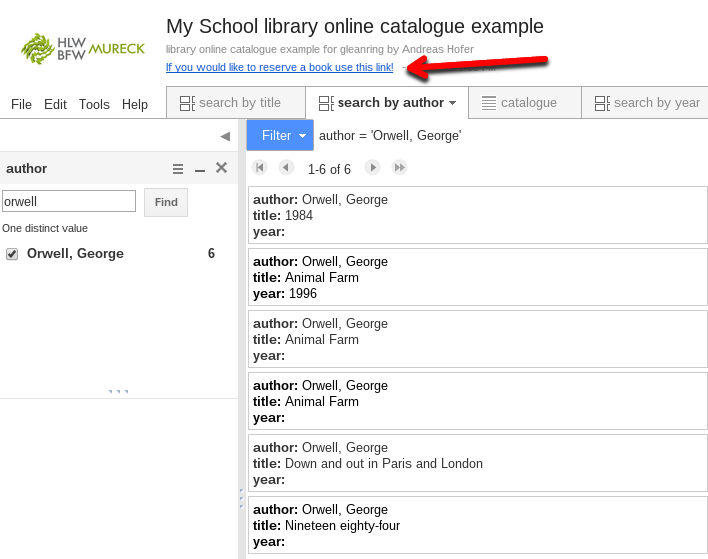
At the beginning of this school year I was faced with a novel task: putting the school’s library catalogue online for our students. My first thought was simply to use Google Docs or Sheets and publishing the catalogue online (you could use the browsers search ctrl-f to find titles).
However, after having tried out these options I found them quite cumbersome for users and tried to come up with something more database like, using Google Fusion Tables (you might have to add them to your Drive: New>connect more apps > fusion tables) and was quite satisfied with the result.
Basic catalogue:
Create a new fusion table and import a sheet with your catalogue either via file (csv, xls, etc.) or from Google Sheets. I got my data by exporting the titles from our library database explication. The first row of the file has to contain the database headers (author, title, etc.).
Once the data have been imported all you need to do is create new views (layouts) for the search options. I have created one tab for search by title/author/year and then enabled the respective filter. Interestingly the pre-chosen filter only shows up for the users if it contains a value (I opted for a simple blank character). The final step is to publish the table to the web (I chose “anyone with the link can view”) and to share or publish the link. And that’s all there is to it.
Advanced options:
To make the catalogue look more professional you can add a couple of features, like a logo, a description and a link to a reservation page. All these features can be added via the menu File > About this Table > Edit table information.
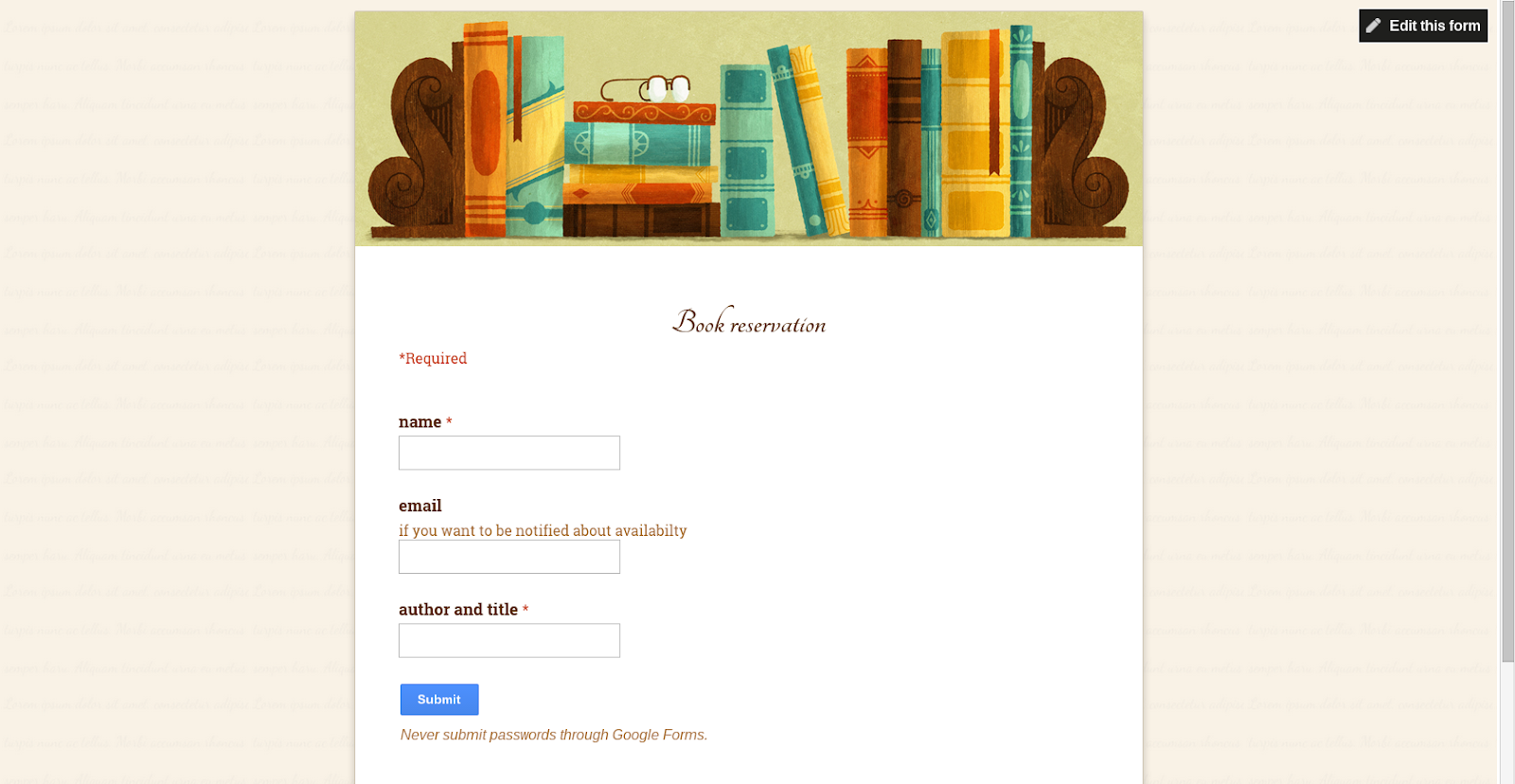
For the reservation page a simple Google form will do the trick. You can even get email notifications when users submit reservations by setting up the notifications in the corresponding Google Sheet.
NB: Of course the online catalogue won't synchronise with your database application. However, it is easy to update the online catalogue by importing new titles (import new rows).


.png)


