Seiten

Posts mit dem Label Chrome werden angezeigt. Alle Posts anzeigen

21.06.15

Google Slides mobile with Chromecast support

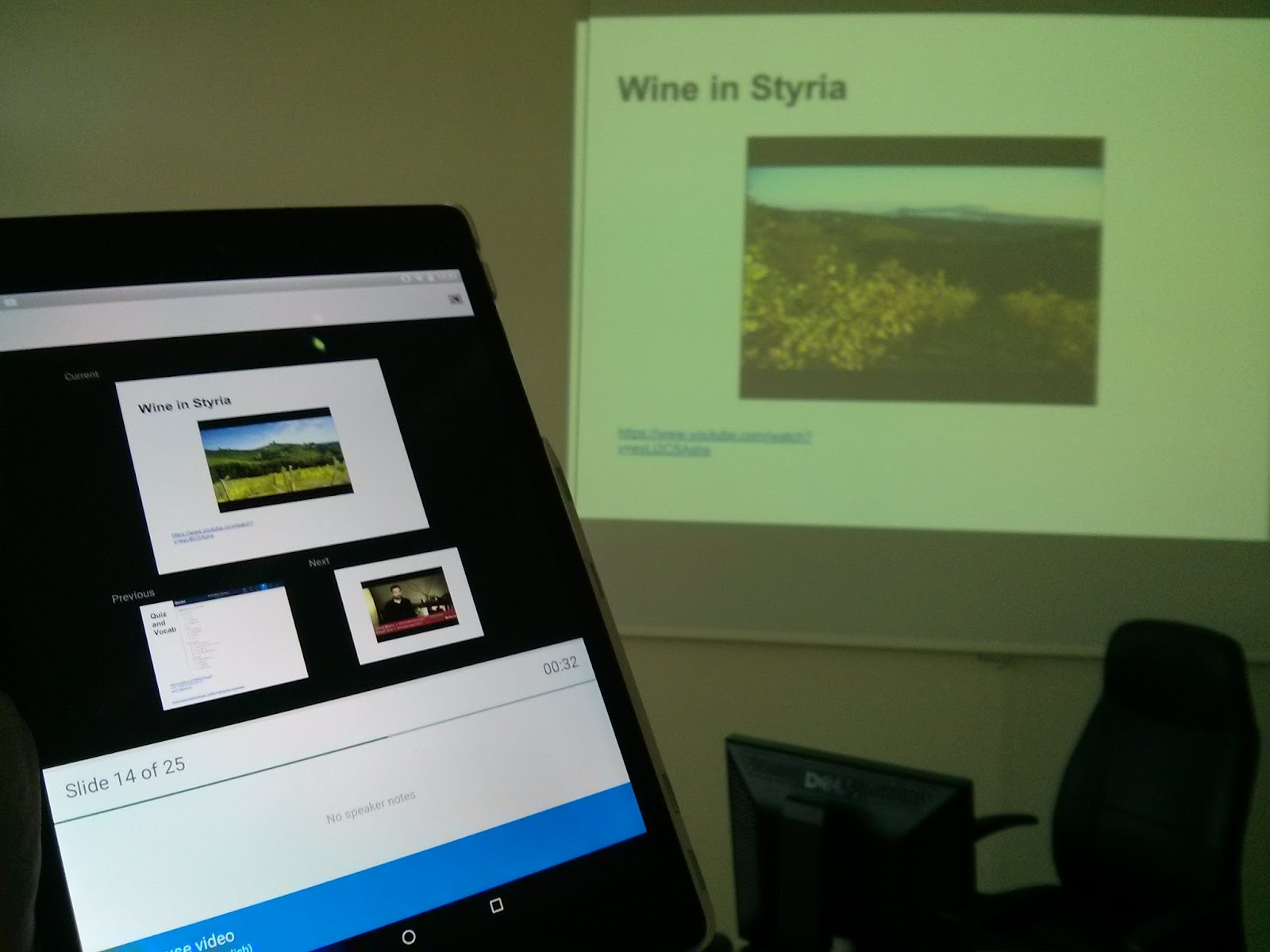
Google Slides has been my favourite presentation software in the classroom for years now, the main reasons being its ease of use, speed and Google Drive integration (e.g. inserting images, linking to other files). One thing I have missed though was the integration with Google’s own Chromecast, which now has finally arrived (together with AirPlay support) in its mobile apps.


IMG_20150619_133321.jpg


So far you could do Slides presentations on Chromecast only via mirroring, which has a number of drawbacks:
  • only Android 4.4 and higher devices support mirroring
  • battery drain due to constant connection and screen on
  • no speaker notes as those would be seen on the big screen


All these drawbacks disappear in the Chromecast integrated version of Slides: you can view your speaker notes and even turn off your device’s screen during presentations. And even iOS devices are supported.
As you can expect with Google first versions Chromecast support is not perfect, but it is actually pretty good for a start. Here are the pros and cons:


Pros:
You can remote control your presentation with the following features:
  • shows previous and next slides
  • shows speaker notes
  • shows presentation timer
  • allows video playback and pause


Here is what I still miss
  • slides slider for skipping several slides at a time
  • a video slider for fine grained video control and full screen mode
  • a blackout button to temporarily turn off presentation
  • a pointer


Some of these are only minor inconveniences, however, as there are easy workarounds for them. Skipping several slide: go back to main presentation screen and choose the slide you want to continue with (you also have to reconnect the Chromecast). Video: for full screen viewing all you need to do is enlarge the video to full slide size in design mode. If you need to work a lot inside a video (frequent replay, skipping, etc.), it would be best to Chromcast from the YouTube app and if you absolutely need a pointer you can use Chromecast mirroring.

All in all, the first version of Slides with Chromecast support is highly usable and I’m looking forward to seeing more useful features in future.

23.03.15

How to download subtitles or captions from YouTube

YouTube is probably the most used digital tool in classrooms all over the world today and lends itself for a variety of purposes ranging from short listening comprehension during classes to flipped classroom activities.
Often it would be useful to have the subtitles (captions) available for preparation or follow up activities, particularly in foreign language classes. Unfortunately there is no option to download subs from YouTube directly. There are, however various workarounds. The fastest way is also the geekest one and it works like this.
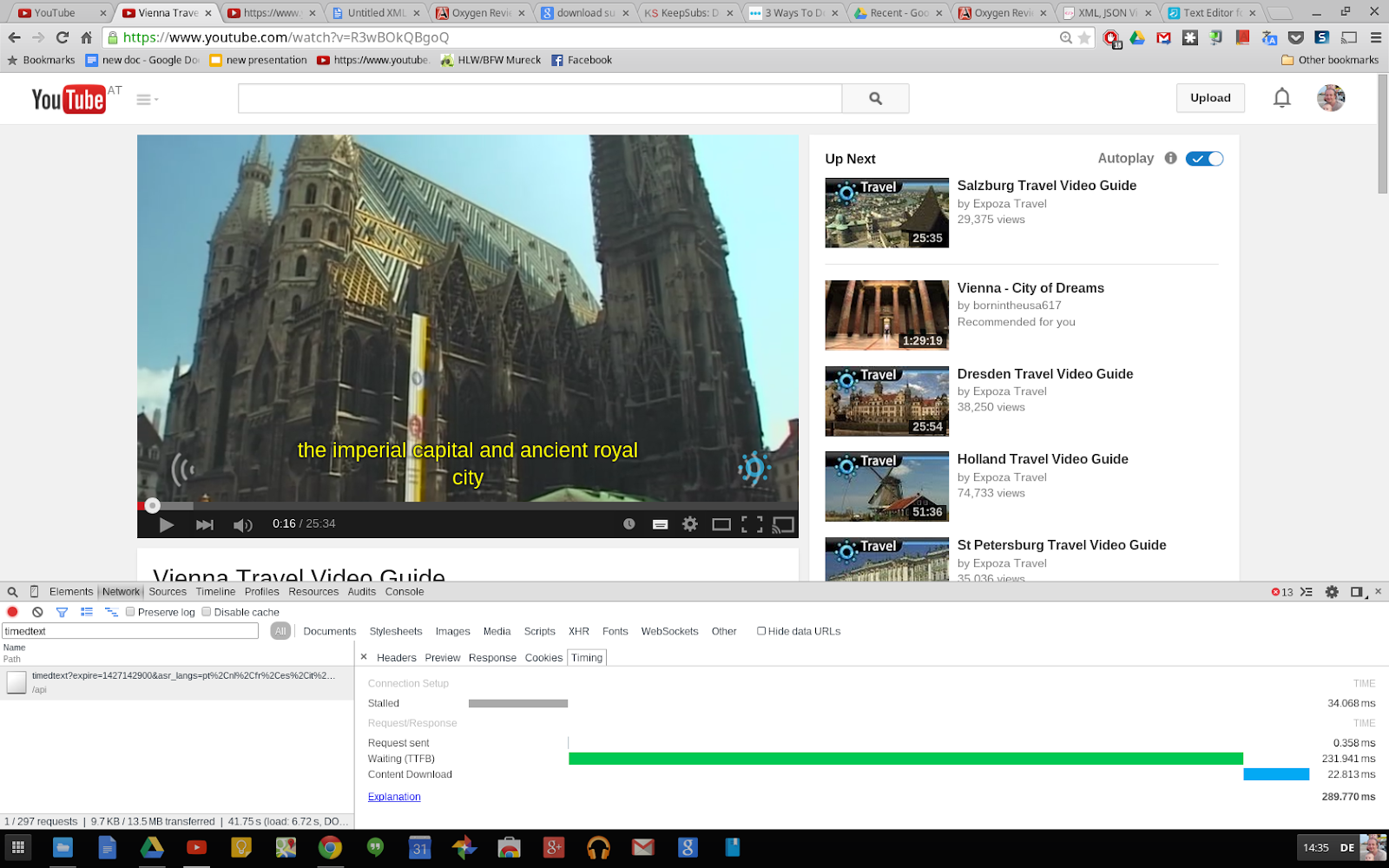
Screenshot 2015-03-23 at 14.35.48.png
  1. Open the video you want to extract the subtitles from in Google Chrome.
  2. Turn on the subtitles in the bottom right menu (often only auto-generated subtitles are available, which you might still want to download, even though the transcription is not perfect). Turn on developer tools and filter for “timedtext” and you get the URL link to the chosen subtitles file  in xml format (open by double clicking and a new broswer tab will open).
  3. To extract the text from the xml file I save it to my Drive (using the “save to Drive” Chrome extension).
  4. Finally I open the XML file with the oXygen XML Webapp (you have to connect it with xml files once using the “connect more apps” option when opening it). And voilà. That’s all you need to do.

Screenshot 2015-03-23 at 14.41.07.png
If you find that method too geeky, here is another one:
Use http://keepsubs.com/ to donwload an .srt file. Rename the file to .txt and then you can manually copy the text from the file - however it takes much more time than the first method which really only takes a few seconds once you get the hang of it. 

19.03.15

Using quick links in Chrome to existing and new Google Drive files

Google Drive is great for quickly finding your documents. The search function will find almost anything in a matter of seconds (even if hidden deep inside documents, pdf and image files) and you can star frequently used documents.


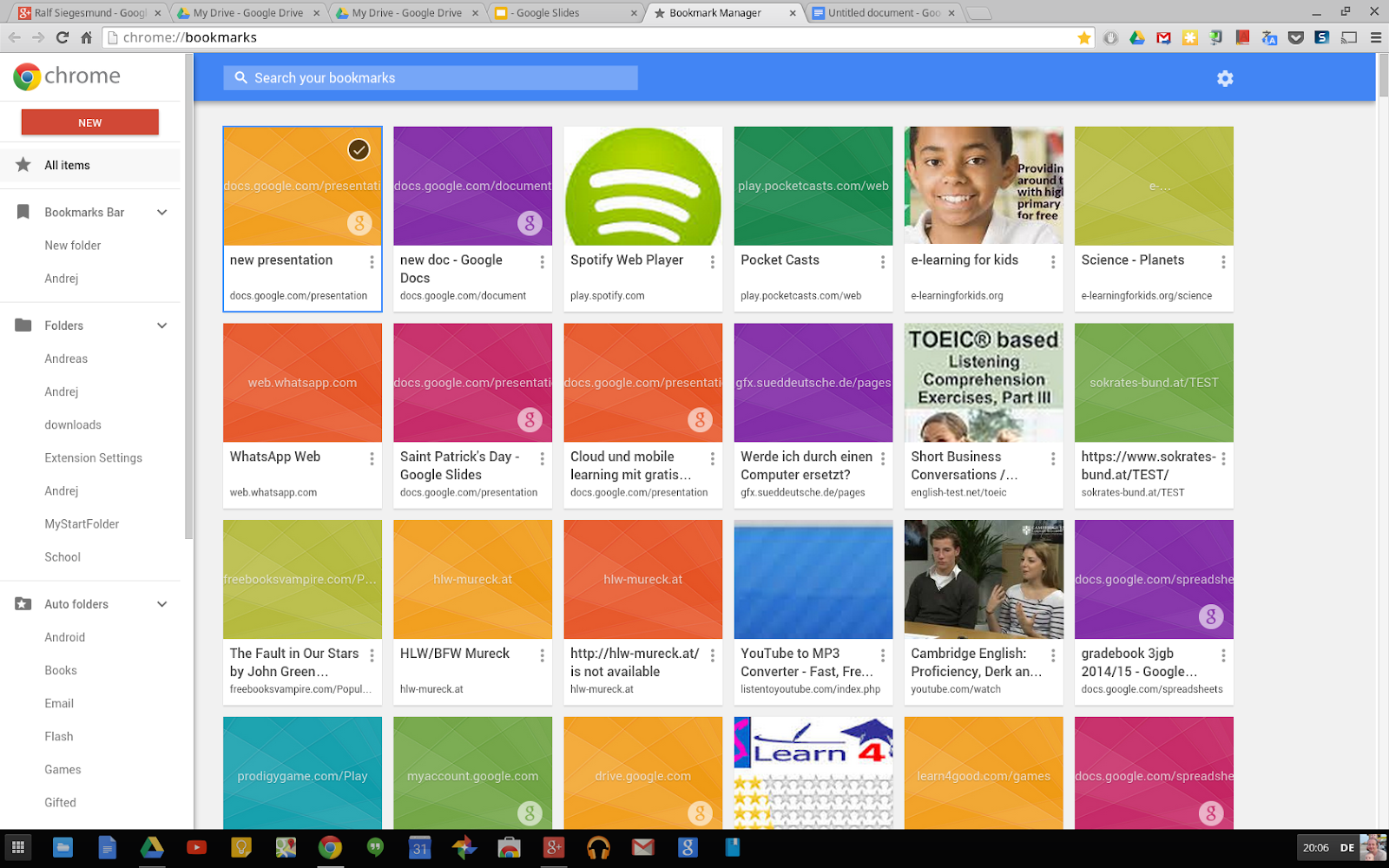
Screenshot 2015-03-19 at 20.06.13.png


However, there is even a faster way to your documents than staring them. By using Chrome bookmarks you can access your files without having to go into your Drive in the first place. I do this typically with files I use almost on a daily basis, like my lesson planner (a doc)  and my gradebooks (Google spreadsheets). All I need to do is star the document in the omnibox and then I can use autocomplete  to get to them quickly, e.g. “less..:” for lesson planner, or the grade for which I need the gradebook.  


You can even create new documents this way. However you will need to create the link manually in your bookmarks:
  1. Go  to chrome://bookmarks/
  2. create a new bookmark to
  3. https://docs.google.com/document/create
  4. name it “new doc” (or anything you will remember, like “create document”)
  5. and then you will be able to use the bookmark either from the omnibox, the bookmarks bar or the bookmarks page.


If you want to create shortcuts for a new slide or sheet, you only need to substitute the “document” part of the link with “presentation” and “spreadsheets” respectively.

31.07.14

Creating quick tutorials with animated gifs

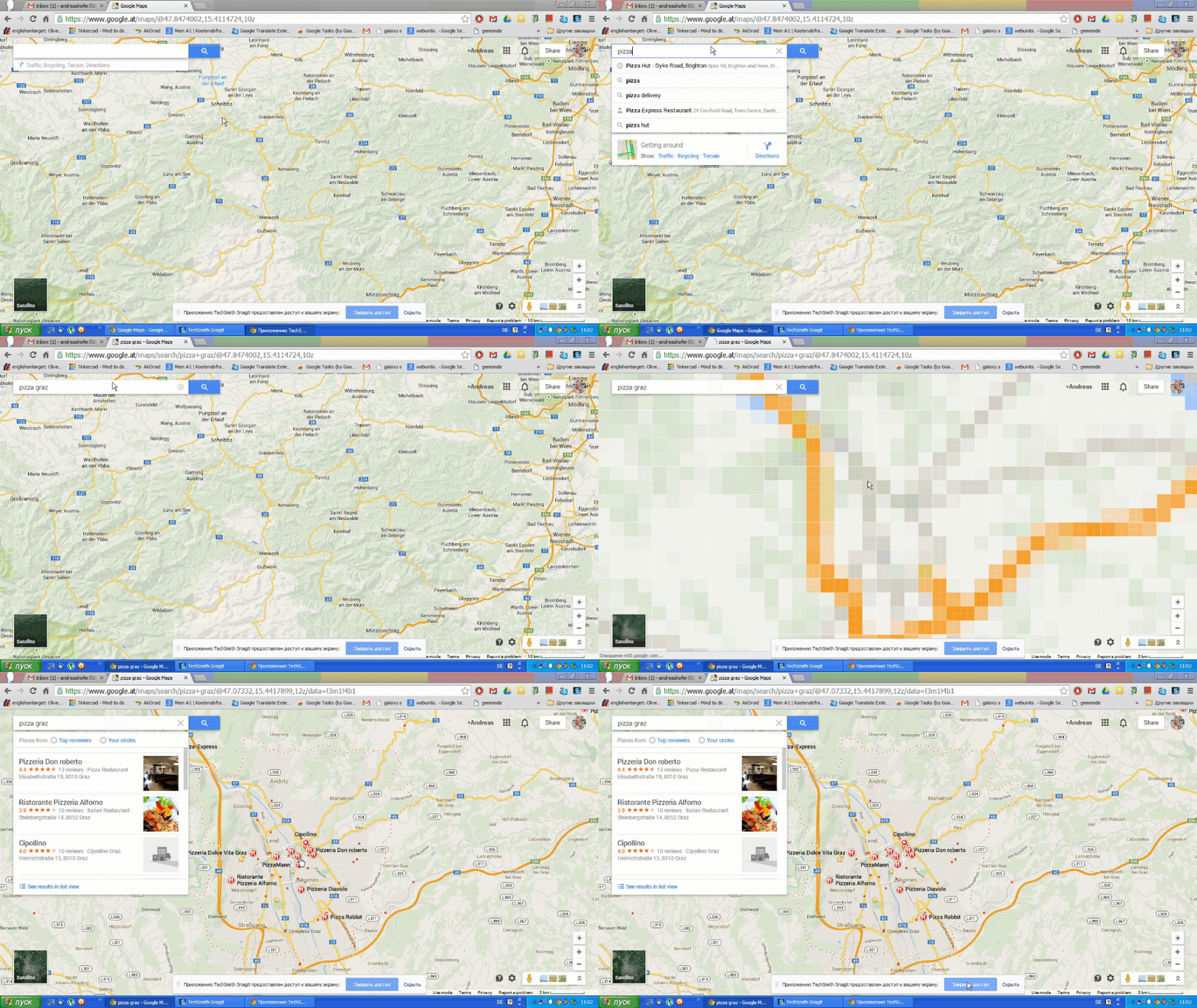
Animated gifs are used a lot on the web to demonstrate new features of software or quick tutorials for web services. So far  this could be done easily only with professional software like Camtasia. Techsmith, the same company that also produces  Camtasia has made this feature free for the Snagit Chrome extension.


The new feature just works like conventional screen recording. When the recording has finished it is automatically uploaded to your Drive and you have the additional options of sharing via YouTube or uploading to Drive as an animated gif.


Having the gif automatically saved to your drive has the advantage that you can immediately share it with your students, or you can use it in a Google doc or Slides presentation.

Link: https://chrome.google.com/webstore/detail/techsmith-snagit/fcnghgbgmemnlbckdipnmelbanpgneik

2014-07-31_11-02-26.gif
Go

26.07.13

How Chromecast can be used in the classroom and how to test it without the actual device


While few people haven’t even heard the name Chromecast yet, Google’s latest device has made quite a splash within the tech scene and has sold out on the first day of its availability. It is a little $35 computer stick which runs a lite version of the Chrome operating system and allows you to reroute media from a variety of devices (smartphones, tablets, PCs) to a big screen (TV or projector).


The device was mainly presented as a home consumer device for streaming movies, music, YouTube videos etc. onto your TV. Even so, it has a great potential for the classroom. Particularly in classrooms which haven’t been equipped with a class computer it could serve as an extremely cheap substitute for one considering its price tag of $35. The ingenious idea of chromecast is that you make use of a mobile device (smartphone, tablet) as computer (interface) and let chromecast do the rerouting to a big screen. An even if there is a classroom PC the device would avoid long log-in and startup procedures and foster the use of online media the classroom through its ease of use.

What you need:
  • Chromecast dongle
  • a big TV or projector
  • Wi-Fi
  • a smartphone(/tablet/laptop)

What you could do in the classroom

  • show educational videos from YouTube
  • show photo slideshows
  • give presentations using online presentation software such as Google Slides/Microsoft PPT 365
  • stream music
  • play foreign language listening exercises
  • read web sites (news, stories, etc.) together

In theory it could also be used to do real time collaboration in the classroom as any web 2.0 service would be included via the chrome web-browser cast (currently in beta). Among them could be:

  • creating a mindmap
  • working collaboratively on a prezi
  • using an online interactive whiteboard

Google has made Chromecast open to developers, who could come up with lots of more interesting uses in the classroom.

Of course Chromecast has been compared a lot to Apple TV in the press. What would be the advantages/disadvantages of Chromecast over Apple TV in the Classroom? Here are the main points:

+ Chromecast is a much cheaper solution
+ Chromecast can be operated with the cheapest android phone and doesn’t require an expensive iPad
+ it is platform independent, which makes it ideal for BYOD classrooms
+ it saves WiFi bandwidth (often critical in schools) by effectively halving Wi-Fi traffick
- no mirroring of your screen (in apps that don’t support Chromecast)
- no playing of local content

The disadvantages might seem quite big ones as that means teachers can’t give app tutorials and students can’t immediately show content that was not created online. These disadvantages, however, start to disappear as more and more students are getting familiar with tablets (no need for tutorials) and starting to use online services (just upload media before presenting them).

Unfortunately Chromecast devices have sold out for the time being. It is still possible to test the functionality at least with YouTube though. In fact it has been around for a while now. I have had it on my Google TV for a couple of months. And even if you haven’t got a smart TV you can test it simply by signing into the leanback mode of YouTube on a PC and use your smartphone as a remote control. Go to:

  • Go to the settings (cog wheel)
  • sign in
  • activate the leanback service
  • pair your device(s) using the qr code or typing in the code manually

you are good to go.


19.05.13

Google I/O, stats and education


As Google I/O 2013 was going on this week, Google stocks hit an all time high of over $900 (and simultaneously the G-Learning blog has reached 50.000+ pageviews). And while this year's Google I/O might have been a disappointment for gadget lovers (no new Nexus smartphones or tablets were presented as had been expected) there are some quite positive implications for education:

900 million activated android devices,  Google+ and YouTube in second and third place (after Facebook) in social media, Chromebook nr. 1 selling laptop on amazon.com for more than 20 consecutive weeks, integration and unification of Google services and some education specials have made this week an exciting one for all fans of Google in education.

Android has not only overtaken iOS in the smartphone market but also in the tablet market. That means BYOD settings now would most probably constitute a majority of Android devices. Moreover, Google has done a lot to contain Android's fragmentation problem. If a school should start a new tablet class next school year, they would most probably start with Jelly Bean devices. What's more, with Google Play for Education it will be easier for educators to find educational apps (curated and recommended by other educators) and push apps and eBooks to their students's devices.

One of the many announcements I am particularly excited about is that Google Play Books now allows you to upload your own PDF and epub files to the cloud which then will be synced between different devices. So far neither Apple nor Amazon provide a similar service. Play books, which is integrated with Google Search and Google Translate is already now one of the best e-readers available. Further integration with Google Keep or Google Drive for taking notes would make it a perfect tool for students.

Google is doing some serious catching up with Apple in the education sector. With iBooks (Author), Airplay, iTunesU Apple has some great tools for education, which are restricted to iPads only, however. Google has a cross-platform approach which is intrinsically appealing to anyone with cheaper devices in mind and ultimately the only way forward for BYOD settings.

Apart from Android Google's web services also will have an even greater impact on education than they have had so far. Currently Google is revolutionizing "search" for the second time in history. With the development of Google Now, image and voice recognition and location based search (Maps, Field Trip) Google is leading the way to Web 3.0. While many other companies are actively trying to circumnavigate the web and succeed being mobile only, Google is pushing forward web standards like the open WebM video format and web-based video chat (Hangouts).

Google+, which so far has had little impact in education, might also become a serious competitor for social media like Facebook and Twitter, or in combination with Google Drive in some instances even for LMSs. YouTube, which currently process 100 hours of uploaded videos per minute is bound to become increasingly important both for traditional and flipped classrooms.

Considering Google's current focus on software integration it is not hard to envisage a near future in which these services work seamlessly together across different devices and platforms providing both tools for personal learning networks as well as as learning management systems and even MOOCs.

22.12.12

Google’s Christmas Marathon


Google has updated the majority of its services and mobile apps in the past couple of weeks - it almost seems Google wanted to make Christmas presents to all of its users. Even though not all services (like the music identification feature in Google Search) can be enjoyed everywhere in the world, there are plenty of new nice features for everyone. Here are my favourites:

Mobile apps:

  • Calendar app: finally Google has come up with a calendar app people really want to use
  • YouTube app: remote control addition for Google TV/PC
  • Google Drive: much improved editing of spreadsheets
  • Gmail app: swipe and pinch features adding more user friendliness
  • Currents: the magazine app is now a real competitor for the like of Flipboard
  • Google Earth: new 3d tours
  • Google Play Books: read aloud, dictionary, translation and notes (finally a competitor to the likes of the Kindle app and iBooks)
  • Google Now: lets you know how much exercise (walking, running, cycling) you have done (though this one probably still needs a lot of improvement it has a potential to decrease obesity)
  • Android camera: addition of photospheres (360 panoramic images); here is a Christmassy example
  • Google+ app: user interface improvement to an already excellent app; addition of communities and photospheres

The web and the cloud

  • YouTube: create slideshows from uploaded/imported (Picasa, Google+) photos
  • Chrome: Save to Drive from the web (images, texts)  addon for the Chrome Browser
  • Google Drive: improved Google Presentations/Slides (as it is called on my Chromebook) with a very handy presentation mode; integration of third party webapps
  • Gmail: attach files from Google Drive (up to 10GB - this one is a real killer feature)
  • Google+: communities: even though you can create communities with circles, this one comes more naturally

To heighten the Christmas spirit, Google has furthermore created its own Santa Tracker, both as a web app and as a mobile app:
http://www.google.com/santatracker/
Google Play Link

To mind Google has more than deserved the title of most innovative tech company awarded by The Economist (both in 2011 and in 2012).

I would like to finish my Christmas post with a “Happy Christmas to everyone!”


01.12.12

The new Samsung Chromebook - a great device for school and education

For the last week I have been using a new Samsung Chromebook in school (not with students, just for myself as a teacher) and it has been mostly - with the exclusion of some hiccups - a great experience. It combines the lightness, simplicity and speed of a tablet with the versatility of a laptop. Of course, not without making some compromises. So, here is what the Chromebook is not
  • a substitute for full blown PC and therefore not likely to be your sole device 
  • a status symbol as it does feel a bit cheap (or rather corresponds to the price tag of $249)
  • a device you would want to have unless you feel at home in the cloud and you have got wi-fi access at home and at school

Having said that this little netbook with a great keyboard and an even greater trackpad has surprised me with how many task I like it using for.  As it is instantly on it is particularly useful when you have tasks to do that don't typically take longer that booting a slow PC and logging into the school's network, including sending an email, taking a couple of notes, getting organized and doing research work online.

If you are familiar with the Google apps and Google Chrome you can start to work straight away. Here is what I've been using the Chromebook for:

  • staying organized with calender, tasks and email
  • writing my preparations in Docs
  • creating presentations for my classes in Slides (quite a hassle free experience)
  • using drive to access files (from pdfs to mp3 for listening comprehension)
  • research (Google Search, Google Translate, Wikipedia, etc.) 
  • entering students' grades and assignments into a Google spreadsheet
  • blogging (in fact I'm writing this review on the Chromebook)

This list basically covers all my needs as a teacher. Students, of course, could additionally choose from hundreds of educational apps on the web, such as voki, sliderocket, prezi and many more.

The  Chromebook is very light and you can carry it around just like a tablet, without cables and connectors. The battery lasts for 6 hours, which should get you easily over one school day.

The only problems I have had so far were occasionally slow connections, connection timeouts (disconnecting and reconnecting resolved the problem) and inserting an image into blogger directly from the webcam. My verdict: 4 1/2 stars out of 5.


02.09.11

New Google Docs look and new features that are useful for students and teachers


Google Docs has a new look, which you can enable by clicking on the “try the new look” link above the menu bar (it is always possible to revert to the old look in the help menu). Google has adopted the new look across the board, i.e. with all major Google apps including:
  • Gmail
  • Google Calendar
  • Google Docs
  • Google Sites
  • Blogger
Apart from the new look, Google Docs also has some new features which are useful for students and teachers.  The two most useful for teachers and students are probably support for compressed file types (.zip and .rar), offline viewing of documents and new functions for the web clipboard.

21.08.11

Google browser tools for language learners

Some Google tools come in quite handy for foreign language learners. I use Google Chrome, even so the following tips should work equally well with Firefox. 
Google translate
Install Google translate browser plug-in and you can get instant translation of any webpage with a mouse click. You can configure which languages you want to use. Google translate is anything but perfect but when it comes to machine translation there is probably no better tool (not even among paid ones).
Google dictionary plug-in
Much more useful than google translate is Google dictionary for language learners. If you install the plug-in all you need to do is double click an unknown word and you get a call-out telling you the meaning of the word and its pronunciation (audio).

19.08.11

Springpad: (social) notetaking and learning - better than Evernote

There is definitely not shortage of notetaking and webclipping apps. When it comes to notetaking you can do a lot with google apps themselves. However , if you want to keep everything in one place you have to use a notetaking app. The most popular notetaking app, both on android and iOS is Evernote.

When I first installed Evernote on my mobile device I had a real “wow” experience. However, the free version does not allow you to save notes on your mobile device and that means its use for mobile learning is quite limited and becomes useless even for shopping where you have no 3G or wi-fi access.

Beliebte Posts