Google Slides does not have as many features available as Powerpoint, still it has some very simple options to make presentation quizzes more interactive and to embed the quiz easily in your blog or LMS.
The following tutorial shows you a couple of ways of doing that, ranging from simple true/false questions to a "Who wants to be millionaire? style quiz.
In case you would like to have a look at the sample slides, just click here and make a copy of them in your own Drive.

learning and teaching with free google tools
Posts mit dem Label Google Slide werden angezeigt. Alle Posts anzeigen
Posts mit dem Label Google Slide werden angezeigt. Alle Posts anzeigen
26.07.13
How Chromecast can be used in the classroom and how to test it without the actual device
 While few people haven’t even heard the name Chromecast yet, Google’s latest device has made quite a splash within the tech scene and has sold out on the first day of its availability. It is a little $35 computer stick which runs a lite version of the Chrome operating system and allows you to reroute media from a variety of devices (smartphones, tablets, PCs) to a big screen (TV or projector).
The device was mainly presented as a home consumer device for streaming movies, music, YouTube videos etc. onto your TV. Even so, it has a great potential for the classroom. Particularly in classrooms which haven’t been equipped with a class computer it could serve as an extremely cheap substitute for one considering its price tag of $35. The ingenious idea of chromecast is that you make use of a mobile device (smartphone, tablet) as computer (interface) and let chromecast do the rerouting to a big screen. An even if there is a classroom PC the device would avoid long log-in and startup procedures and foster the use of online media the classroom through its ease of use.
What you need:
- Chromecast dongle
- a big TV or projector
- Wi-Fi
- a smartphone(/tablet/laptop)
What you could do in the classroom
- show educational videos from YouTube
- show photo slideshows
- give presentations using online presentation software such as Google Slides/Microsoft PPT 365
- stream music
- play foreign language listening exercises
- read web sites (news, stories, etc.) together
In theory it could also be used to do real time collaboration in the classroom as any web 2.0 service would be included via the chrome web-browser cast (currently in beta). Among them could be:
- creating a mindmap
- working collaboratively on a prezi
- using an online interactive whiteboard
Google has made Chromecast open to developers, who could come up with lots of more interesting uses in the classroom.
Of course Chromecast has been compared a lot to Apple TV in the press. What would be the advantages/disadvantages of Chromecast over Apple TV in the Classroom? Here are the main points:
+ Chromecast is a much cheaper solution
+ Chromecast can be operated with the cheapest android phone and doesn’t require an expensive iPad
+ it is platform independent, which makes it ideal for BYOD classrooms
+ it saves WiFi bandwidth (often critical in schools) by effectively halving Wi-Fi traffick
- no mirroring of your screen (in apps that don’t support Chromecast)
- no playing of local content
The disadvantages might seem quite big ones as that means teachers can’t give app tutorials and students can’t immediately show content that was not created online. These disadvantages, however, start to disappear as more and more students are getting familiar with tablets (no need for tutorials) and starting to use online services (just upload media before presenting them).
Unfortunately Chromecast devices have sold out for the time being. It is still possible to test the functionality at least with YouTube though. In fact it has been around for a while now. I have had it on my Google TV for a couple of months. And even if you haven’t got a smart TV you can test it simply by signing into the leanback mode of YouTube on a PC and use your smartphone as a remote control. Go to:
- Go to the settings (cog wheel)
- sign in
- activate the leanback service
- pair your device(s) using the qr code or typing in the code manually
you are good to go.


22.12.12
Google’s Christmas Marathon

Google has updated the majority of its services and mobile apps in the past couple of weeks - it almost seems Google wanted to make Christmas presents to all of its users. Even though not all services (like the music identification feature in Google Search) can be enjoyed everywhere in the world, there are plenty of new nice features for everyone. Here are my favourites:
Mobile apps:
- Calendar app: finally Google has come up with a calendar app people really want to use
- YouTube app: remote control addition for Google TV/PC
- Google Drive: much improved editing of spreadsheets
- Gmail app: swipe and pinch features adding more user friendliness
- Currents: the magazine app is now a real competitor for the like of Flipboard
- Google Earth: new 3d tours
- Google Play Books: read aloud, dictionary, translation and notes (finally a competitor to the likes of the Kindle app and iBooks)
- Google Now: lets you know how much exercise (walking, running, cycling) you have done (though this one probably still needs a lot of improvement it has a potential to decrease obesity)
- Android camera: addition of photospheres (360 panoramic images); here is a Christmassy example
- Google+ app: user interface improvement to an already excellent app; addition of communities and photospheres
The web and the cloud
- YouTube: create slideshows from uploaded/imported (Picasa, Google+) photos
- Chrome: Save to Drive from the web (images, texts) addon for the Chrome Browser
- Google Drive: improved Google Presentations/Slides (as it is called on my Chromebook) with a very handy presentation mode; integration of third party webapps
- Gmail: attach files from Google Drive (up to 10GB - this one is a real killer feature)
- Google+: communities: even though you can create communities with circles, this one comes more naturally
To heighten the Christmas spirit, Google has furthermore created its own Santa Tracker, both as a web app and as a mobile app:
http://www.google.com/santatracker/
Google Play Link
To mind Google has more than deserved the title of most innovative tech company awarded by The Economist (both in 2011 and in 2012).
I would like to finish my Christmas post with a “Happy Christmas to everyone!”
12.11.12
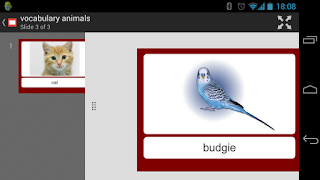
Creating collaborative flashcards for mobile devices with Google Slides
Creating flashcards collaboratively with Google Slides is
very simple. In Google Drive you need to create a new presentation for the
flashcards and share it with your collaborators. Choose a template that suits you
(I find “label” quite handy for flashcards). Create the title slide (e.g. “animal
flashcards”) and a first slide, which serves as template for all others.
 The final step would be to download the flashcards to mobile
devices which can be done in different ways:
The final step would be to download the flashcards to mobile
devices which can be done in different ways:
All other content slides are then created by duplicating the
latter slide. The students can easily add content by using the search tool for
images and typing the text underneath them. Alternatively photos uploaded to
Picasa by the students themselves can also be used. Adding the “flip”
transition to all slides even provides the feel of flashcards.
 The final step would be to download the flashcards to mobile
devices which can be done in different ways:
The final step would be to download the flashcards to mobile
devices which can be done in different ways: - Using the Google Drive app
- Downloading the slides as a file (pdf or pptx)
- Using a browser and the shared URL
In order to permanently store the content on the phone the
first two options are best. Google Drives allows for offline viewing when using
the pin tool in the file menu.
10.11.12
Meet Google Slides

Google has renamed, improved and extended its Google
Presentations cloud software. Over the past year it has thus turned from a
rather mediocre product into a great teaching and learning tool. Whereas a year
ago I turned to Google presentation only for experiments, it has become my tool
of choice when it comes to using presentation slides in the classroom. Among
the improvements are:
- Character-by-character collaboration: See updates in real-time as you edit presentations with other people.
- Drawing on canvas: Draw organizational charts, flowcharts, design diagrams and much more right within Google Slides.
- Transitions: Enhance your presentation with new ways to transition between slides.
- Shape linking: Turn shapes within your presentation into hyperlinks to other slides, presentations, or external webpages.
- Better animations: added new themes to make it easy to create show-stopping presentations.
- Commenting: Collaborate with other people by adding comments to shapes, text or slides.
Google Slides now has great collaboration features (real
time editing, commenting, different sharing options) as well as great
integration with other Google products (from inserting media from Drive, Picasa
and YouTube to publishing on Google+). Best of all is
Abonnieren
Posts (Atom)
Beliebte Posts
-
.png) The number of digital publications has exploded in the past couple of years. And I’m not talking about literature only. Think of manuals fo...
The number of digital publications has exploded in the past couple of years. And I’m not talking about literature only. Think of manuals fo... -
Google Sheets are great for managing students’ gradebooks and keeping all sorts of organisational content for school. However, I find them ...
-
 Update : Google has made it possible to copy the link via right-click menu in the meantime. Just click into the video and right click on the...
 -
At the beginning of this school year I was faced with a novel task: putting the school’s library catalogue online for our students. M...
-
I have been an avid user of Kahoot in the classroom basically ever since this innovative tool has started. However, Kahoot does have its lim...
-
A common problem I hear from teachers is collecting email addresses from their students. Even though the school might provide the students ...
-
For many teachers using Google Drive in class is made more difficult by the fact that not all students use or want to use Google Drive. Mo...
-
 While few people haven’t even heard the name Chromecast yet, Google’s latest device has made quite a splash within the tech scene and has ...
 -
 For the last week I have been using a new Samsung Chromebook in school (not with students, just for myself as a teacher) and it has been mos...


