Seiten

Posts mit dem Label Google Docs werden angezeigt. Alle Posts anzeigen

03.06.14

How to create a student report with the new Google Sheets (includes template)

student report.gif


I have been keeping my gradebooks in Google spreadsheets for years now. It’s very convenient to access them from different devices such as my chromebook and my tablet. There are lots of advantages to keeping gradebooks in spreadsheets, the most obvious one being automatic calculation of grades, class average, etc. However, when it comes to looking  up information about a particular student having all the information in one row is rather inconvenient and cumbersome to show to students or parents.

The solution is to create a separate report sheet transposing the relevant information and possibly pulling in information from different sheets (e.g. different terms, additional note). The new Google Sheets has a variety of features that makes this an easy process. Here are the necessary steps

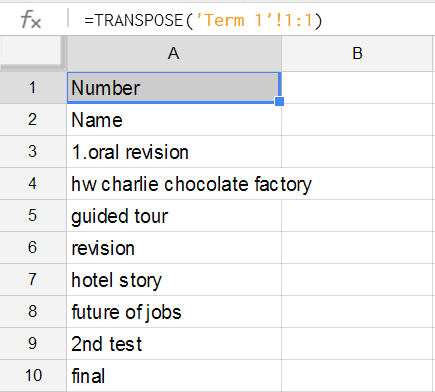
Create a new sheet in your gradebook and transpose the relevant information. You can do this either using copy transpose if you want to choose specific information or the transpose formula if you want to choose all information from the gradebook:
=TRANSPOSE('Term 1'!1:1)
03-06-2014 10-08-55.png


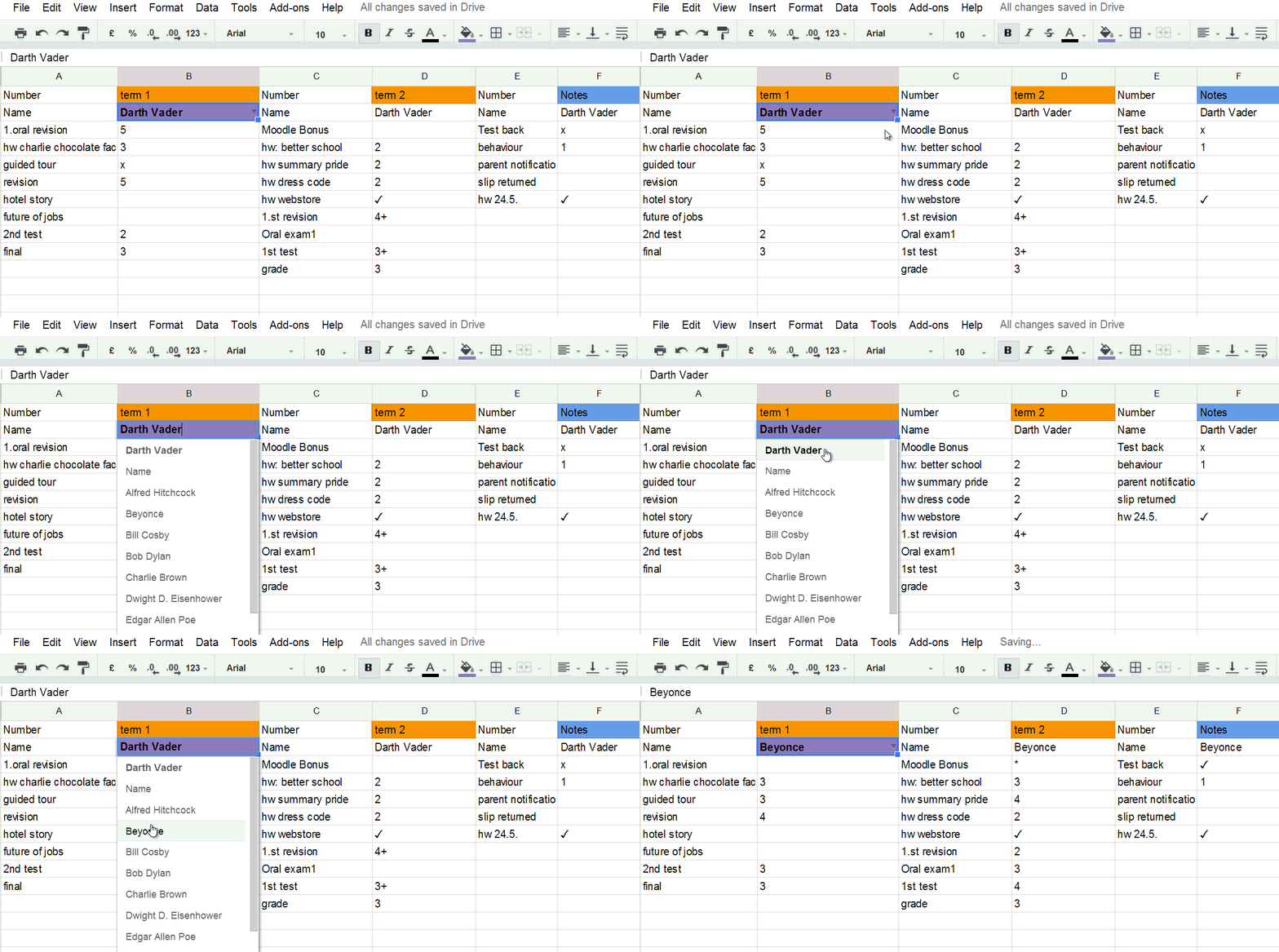
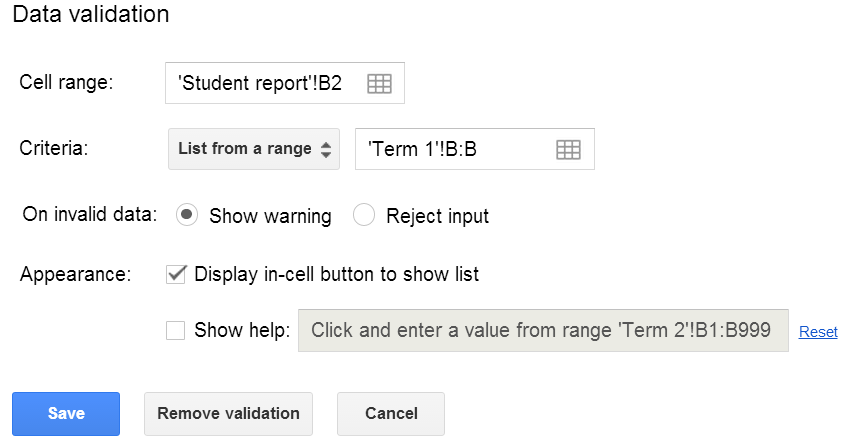
In the B column next to the name field use data validation (menu data/validation) to allow only the students’ names and to create a dropdown list.
03-06-2014 10-09-50.png

The final step is to look up the matching information from other sheets. This can be best achieved with the index and match functions:

=INDEX( 'Term 1'!$A$2:$Z$34,MATCH($B$2,'Term 1'!$B$2:$B$34,0),ROW())

03-06-2014 10-10-31.png

Finally you can pull in information from other sheets simply by repeating the process for other sheets in the file.  

In case that feels a bit overwhelming you can simply use my template

Here is the link to the template. If you want to use it just create a copy in your own Google Drive. Of course you can change the variables and sheet names without losing functionality.

30.03.14

Tips for easier (anonymous) collaboration in Google Drive


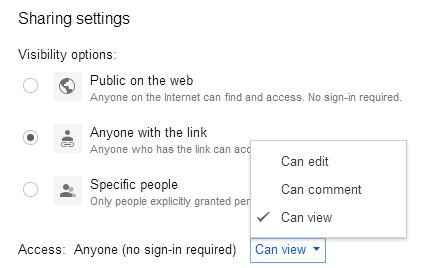
For many teachers using Google Drive in class is made more difficult by the fact that not all students use or want to use Google Drive. Most of my students have a Google account, but very few really use Google Drive and some are reluctant to use their accounts because of privacy concerns. Luckily anonymous sharing and collaboration is almost as good in most situations. I simply share a document using the option “anyone with the link” and then choose “can view/edit/comment” according to my requirements. 2014-03-30_09-29-03.png


One problem that might arise due to anonymous collaboration is, that the document gets a bit messy. The solution: simply use class lists to organize anonymous documents.

Sheets: I keep lists and gradebooks of my classes on Google <Sheets. Whenever I need a collaborative sheet (e.g. signing up for presentations) I simply create a new sheet, paste the names and share the document with the students.

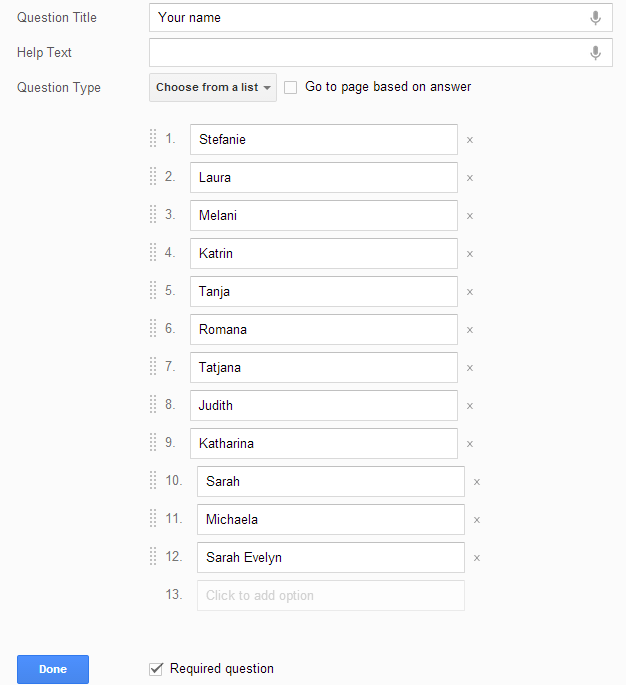
Forms: Forms are always anonymous, but you can create a name field and make it a required question. To make things easier for the students select “choose from list” and paste your students names from your Sheets list. Forms is very user friendly here. 
2014-03-30_09-23-47.png

Slides: There is not really a quick way of doing the same thing for Slides. The teacher can pre-populate the presentation with slides bearing the students’ names and then save the presentation as template. Alternatively the students simply do that themselves (i.e. create slides with their names, possibly in alphabetical order). Collaborative slides are a huge time-saver in class as merely changing USB flash drives (let alone starting up Powerpoint) takes a lot of time. So, whenever I have only short presentation (typically up to a minute) I ask the students to create one or several slides in a single collaborative document.

Docs: The trick in Docs is a little bit less obvious. Again paste the list of names from Google Sheets or Excel. This time, however use the key shortcut ctrl-shift-v so that you only get the text and not a table. Then format the names using one of the heading styles (e.g. heading 2) and create a table of content. All the students need to do now is click on their names and start writing.

You can use this method whenever:
  • you work with younger students who have no accounts
  • you only have a short text  and you don’t want to open up 15+ documents
  • you want the students to work on one document only
  • you want the students to see the work done by their classmates (e.g. it might be interesting to compare different endings to a story.
  • you want to publish the document to your blog/website and save yourself the time to copy from 15+ documents.

Using the students’ names in alphabetical order also makes it easy to spot the students who haven’t “handed in” their work yet.

Here is an example:


01.03.14

7 Google Search services you might want to use in class

Google Search is simply great for teaching. It is most often used by teachers for preparation and less commonly also in conjunction with the students's smartphones. Google Search is also great if used more or less spontaneously with a projector during a class.

In this tutorial video I give you examples of how the following seven Google Search services can be used in class
  1. Knowledge Graph
  2. Image Search
  3. Google Trends
  4. Google autocomplete
  5. Ngram viewer
  6. Google Search (graphing) calculator
  7. Google Search set time

16.02.14

How to automatically send homework and other files from your Gmail inbox to Google Drive

When it comes to homework there are a couple of ways for your students to hand them in using Google tools. The most convenient way is probably when the school uses Google Apps and the students simply share their own folders, or a teacher sets up folders for their students with the gclassfolders script.


However, more often it is the case that not all students in your class use Gmail and Google Drive. In that case you could a web form like Dropzone where the students can upload their files to your Google Drive without signing in or even having to have a Google account.


The most common way of handing in homework is, however, via email. There are a number of drawbacks when it comes to managing homework in your email inbox. It would be much more convenient to have the files in your Drive and, of course, on your PCs hard drive if you use the desktop version of Google Drive. Google doesn’t provide the possibility to save files via Gmail, however there is a great third party script which fulfills this functionality.


Here is how to set it up.


1. Create a homework label in Gmail
If you collect homework via Gmail, you might already be working with labels anyway. If not, here is what you have to do. Create a label (there is a link under Inbox and all your other labels), say. “homework”. Then create a filter with “contains the word “homework”” (I also have a second one with “HW”) and choose apply label “homework”.


2. Set up and run the script
The scrip “Send to Google Drive” is a Google spreadsheet script which is really easy to set up. You create a copy of the script in your own Drive and change the settings according to your own wishes (Gmail label and Google Drive folder in which you want to save the attached files). Finally you have to authorize and run the script (see screencast at the bottom of the post). Here are the author’s instructions:


Apart from collecting homework you can also use the script for mobile uploads from your students (e.g. photos, podcasts or short videos). The script runs every five mintues, so you might have wait a while before you see uploads in your Drive.


If you do audio podcasts with students who use iPhones, it is the only way of collecting the files in your Drive directly. iOS doesn’t allow direct access to your files other than photos and videos. So, the students can’t upload them neither to their own Drives nor via a web form.

The script has another advantage: it also saves homework from all past emails and thus creates an archive of past email. I move the old files into a separate folder (homework archive). Of course, you can also delete them, if you don’t want to keep a copy of your students’ homework.


03.02.13

Google Forms updated

Google has finally updated one of its most popular services among educators: Google Forms. Now it has all the collaborative features of other Google Drive applications like Docs and Slides, plus some new features specific to Google Forms that make it more user friendly. Among the new features are:
  • multi-user collaboration
  • commenting 
  • themes (the traditional one was really getting a bit boring, but it's still available for fans)
  • more options for questions
  • multiple pages
  • easier editing and automatic saving
  • graphic result analytics
Google forms can be used for polls, surveys and quizzes and even review exams.
And here is what it looks like (you are welcome to take the online OS survey, of course):


22.12.12

Google’s Christmas Marathon


Google has updated the majority of its services and mobile apps in the past couple of weeks - it almost seems Google wanted to make Christmas presents to all of its users. Even though not all services (like the music identification feature in Google Search) can be enjoyed everywhere in the world, there are plenty of new nice features for everyone. Here are my favourites:

Mobile apps:

  • Calendar app: finally Google has come up with a calendar app people really want to use
  • YouTube app: remote control addition for Google TV/PC
  • Google Drive: much improved editing of spreadsheets
  • Gmail app: swipe and pinch features adding more user friendliness
  • Currents: the magazine app is now a real competitor for the like of Flipboard
  • Google Earth: new 3d tours
  • Google Play Books: read aloud, dictionary, translation and notes (finally a competitor to the likes of the Kindle app and iBooks)
  • Google Now: lets you know how much exercise (walking, running, cycling) you have done (though this one probably still needs a lot of improvement it has a potential to decrease obesity)
  • Android camera: addition of photospheres (360 panoramic images); here is a Christmassy example
  • Google+ app: user interface improvement to an already excellent app; addition of communities and photospheres

The web and the cloud

  • YouTube: create slideshows from uploaded/imported (Picasa, Google+) photos
  • Chrome: Save to Drive from the web (images, texts)  addon for the Chrome Browser
  • Google Drive: improved Google Presentations/Slides (as it is called on my Chromebook) with a very handy presentation mode; integration of third party webapps
  • Gmail: attach files from Google Drive (up to 10GB - this one is a real killer feature)
  • Google+: communities: even though you can create communities with circles, this one comes more naturally

To heighten the Christmas spirit, Google has furthermore created its own Santa Tracker, both as a web app and as a mobile app:
http://www.google.com/santatracker/
Google Play Link

To mind Google has more than deserved the title of most innovative tech company awarded by The Economist (both in 2011 and in 2012).

I would like to finish my Christmas post with a “Happy Christmas to everyone!”


11.09.11

Creating, revising, testing content: learning by Google apps round tripping


Ingredients:
  • Mobile phones
  • Vocabulary for GDocs app
  • Google Goggles
  • Picasa
  • Picasa mobile app
  • Google Forms
  • Google Spreadsheets
  • Blogger
  • Google Maps (optional)
  • Google Sites (optional)
Most e-teachers associate one educational with one educational activity. However, most of Web 2.0 is “mashable” and particularly Google apps have a high potential to be re-used in Moodle, on blogs mobile apps and so on. In this post I would like to suggest an idea for a class project that includes creating, revising and testing content, which you consider a “learning cycle” from a constructivist point of view.

07.09.11

How to create your own Google Maps data mashup

Ingredients:

Google Maps are among the most popular services for mashups. It is possible to put almost anything on a map: photos, diagrams, text, data, even video and audio files. There are many ready-made mashups, like city guides and and tracking a emperor penguin named “Happy Feet”. For some more creative examples check out: http://googlemapsmania.blogspot.com/

I have already posted about how to put photos on Google Maps and in this post I would like to show how easy it is to put data on a map using Google Fusion Tables. Fusion Tables is a lesser known Google Service and it is not quite as intuitive as other Google Docs. Still it is easier to create a mashup with Fusion Tables than using Yahoo Pipes or using the programming API.

As an example I will use technical colleges in Austria.

02.09.11

New Google Docs look and new features that are useful for students and teachers


Google Docs has a new look, which you can enable by clicking on the “try the new look” link above the menu bar (it is always possible to revert to the old look in the help menu). Google has adopted the new look across the board, i.e. with all major Google apps including:
  • Gmail
  • Google Calendar
  • Google Docs
  • Google Sites
  • Blogger
Apart from the new look, Google Docs also has some new features which are useful for students and teachers.  The two most useful for teachers and students are probably support for compressed file types (.zip and .rar), offline viewing of documents and new functions for the web clipboard.

29.08.11

Using audio in Google applications

Google has great photo and video sharing services, however when it comes to audio there is a lot missing. A service like Audioboo or Soundcloud would be really great. Or simply the integration of audio in YouTube – in fact there are a lot of people who convert mp3 to video and upload it to YouTube. Actually, that would be one way of embedding audio into webpages that could be played by iOS devices as the YouTube player is HTML5 enabled.

Anyway, there is a flash-based Google audio player which interestingly is available at only some Google services. The Google audio player shows up in:
  • Gmail – listen to audio files directly from your inbox
  • Reader – enables reader to use podcasts RSS feeds in addition to text-based feeds.

27.08.11

Google apps support in Moodle 2.0>

Moodle finally has web 2.0 and cloud support starting from version 2.0. Here is a quick overview how to use it for Google applications.

Before you can use the Google apps the Moodle administrator has to enable them in the repository section. It is possible to enable
  • Google Docs
  • Picasa
  • YouTube
Moodle lets you import Google Docs documents and use them independently of Google Docs. That means, if you want to use a document collaboratively the better option would be just to link to or embed the file. However, if you want to provide study material this is a really quick way of importing documents.

20.08.11

Polling via Google Forms and Gmail

Ingredients:

  • Google forms/spreadsheets
  • Gmail

Setting up a poll in Google docs is quite easy: create a new form, add your questions and send the link via email. 

Now you can even include the poll in the mail itself, so that the reciever can submit it directly in gmail rather than having to go to the website. Of course, for those not using Gmail, it is still possible to go to the website.

Uses for the classroom: opinion polls, letting students organize themselves into project groups, feedback forms and even quizzes.

19.08.11

Syncing and storing (learning) content on your phone for offline use with Google apps

While google has no note-taking app that could compare with Evernote or Springpad google apps do have quite a lot to offer to sync your notes from the PC to your mobile phone or vice versa. So here are some apps that might come in quite handy for your studies:
  1. Save feeds posts and webclips to Google reader
Read your news and blog sources on your mobile phone and mark them with a star for later reading on a PC (e.g. you might want to watch a flash movie which is not available on the phone or the article might be too long to read on the phone). Select a specific part of of an article on the web or on the phone and post it to reader as a note (webclipping).

  1. Store links to websites on Google bookmarks
Have your bookmarks available anywhere. Similarly to delicious and diigo you can even create lists and share your bookmarks (social bookmarking)

16.08.11

Vocabulary Trainer for GDocs - Android

Vocabulary Trainer for GDocs - Android
Vocabulary Trainer for GDocs
A flashcard trainer which uses a Google Spreadsheet as a source for your learning data. 
Easly upload your vocabulary-lists to Google Docs (or create them with it) and than import your spreadsheets with this app to your phone as a flash-card trainer.

Features: update from GDocs, Text-to-Speak, Powerlearning, Image trainers, Auto-Modus, and a lot more. 
Download from:


Beliebte Posts